
MCP (Model Context Protocol) App Connectors let Managed Agents securely connect to supported external applications and use their available tools to complete tasks. After connecting an app, you can choose which tools the agent can access, authenticate the external account, and use those capabilities as part of the agent's configured workflow. This guide explains which MCP apps are available and how to connect one to a Managed Agent.
TABLE OF CONTENTS
- What Are MCP App Connectors?
- Supported MCP Apps
- Connect an MCP App to a Managed Agent
- Frequently Asked Questions
- Need Help?
What Are MCP App Connectors?
MCP App Connectors allow Managed Agents to interact with supported third-party applications. Once an app is connected, the agent can access the tools you authorize and use them to retrieve information or perform supported actions.
For example, a connected productivity app may allow an agent to search content or create records, while a connected CRM or project-management app may provide tools for creating, updating, or retrieving data.
Connections use the authentication flow supported by the external app, such as OAuth or secure sign-in. You control which available tools the Managed Agent can use after the connection is established.
Supported MCP Apps
Managed Agents support a growing selection of MCP App Connectors. Each connector provides its own set of available tools. The options shown in Agent Studio determine which connectors and tools are currently available for your account.
| MCP App | Common Uses |
|---|---|
| HubSpot | Work with contacts, deals, and CRM activity. |
| Notion | Create pages, search content, and work with databases. |
| Apify | Run supported web-data and automation tasks. |
| Make | Trigger scenarios and multi-app automations. |
| Fathom | Access supported analytics and visitor data. |
| Calendly | Work with scheduling and calendar availability. |
| Canva | Work with supported design and asset tools. |
| OpenArt | Create supported AI-generated visual content. |
| Monday.com | Create and update work items and boards. |
| Cal.com | Book, reschedule, and manage meetings. |
| Higgsfield | Generate supported AI video and image content. |
| GitHub | Work with code, issues, pull requests, and development workflows. |
| Shippo | Work with carrier rates, shipping labels, and tracking. |
| Windsor.ai | Access connected marketing and advertising data. |
| Vapi | Work with supported AI voice-call actions and call information. |
| Google Drive | Find, organize, and manage files and folders. |
| Google Docs | Create, read, and edit documents. |
| Google Sheets | Read and update spreadsheet data. |
| Google Slides | Create and update presentation content. |
| Google Calendar | Create, update, and find calendar events. |
| Atlassian | Work with supported Jira and Confluence actions. |
| Apollo | Search supported contact and company data and manage outreach activity. |
| Fal | Generate supported image, video, and audio media. |
| Zapier | Trigger supported actions and automations across connected applications. |
| Magnific | Upscale and enhance images. |
| DataForSEO | Retrieve supported search, keyword, and backlink data. |
| Trello | Manage boards, cards, and lists. |
| Asana | Create and update supported projects and tasks. |
| ClickUp | Create and update supported tasks, documents, and lists. |
| Fireflies | Access supported meeting transcripts, summaries, and action items. |
| Kling | Generate supported AI video content. |
| Stripe | Work with supported payment, invoice, customer, and transaction tools. |
| Firecrawl | Crawl and extract supported website data. |
| Nekt | Access connected data sources through a unified data layer. |
Connect an MCP App to a Managed Agent
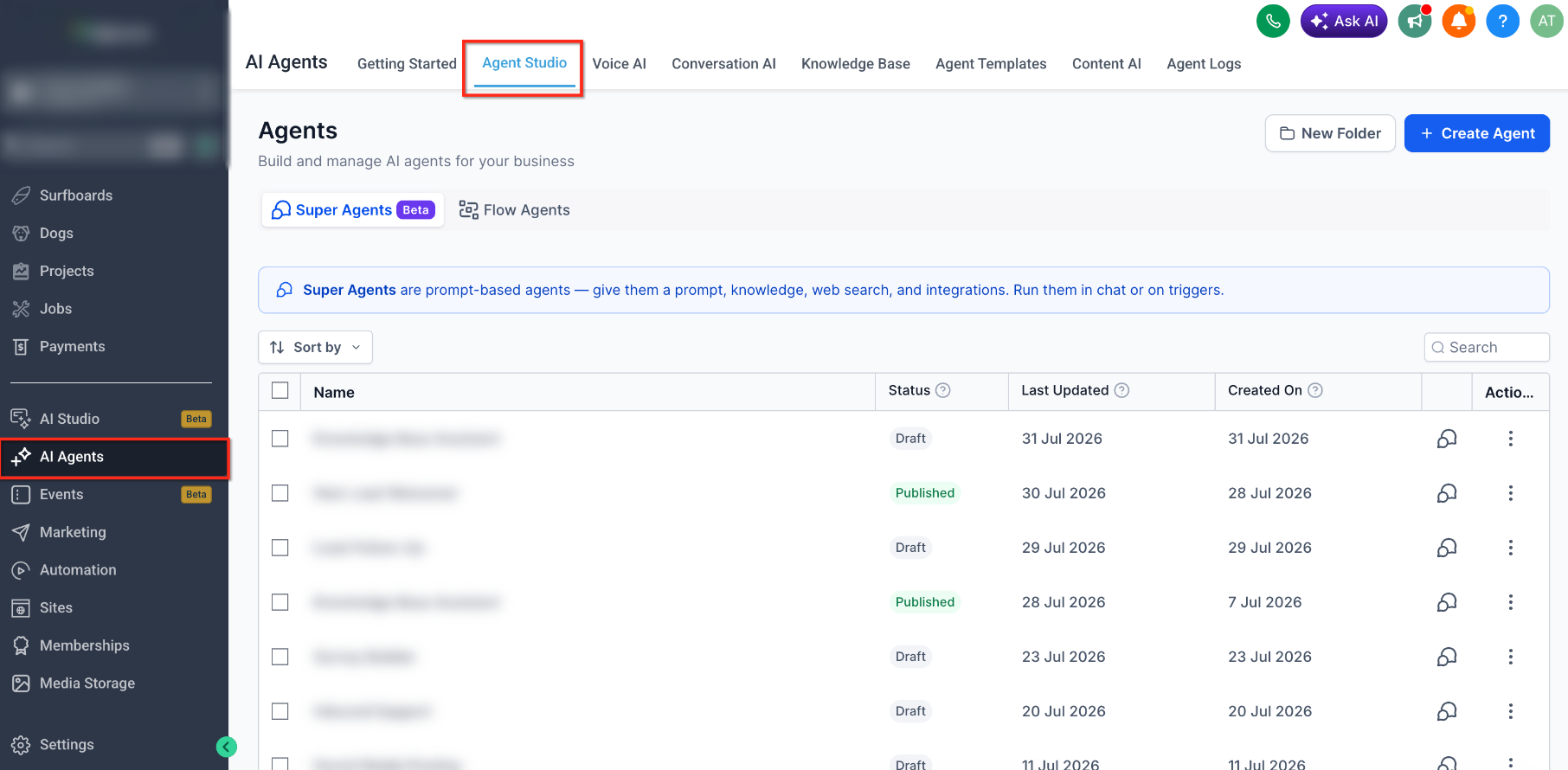
Step 1: Open Agent Studio
From the Sub-Account view, go to AI Agents → Agent Studio.
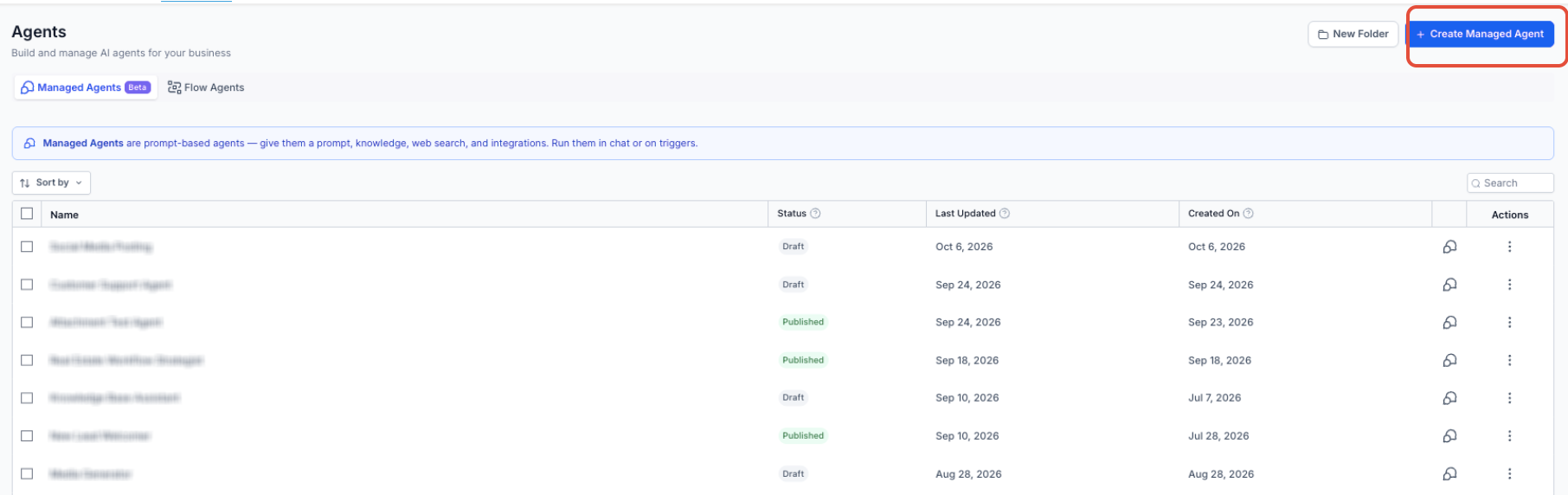
Step 2: Create or Select a Managed Agent
Create a new Managed Agent or open an existing agent that should use the MCP connector.
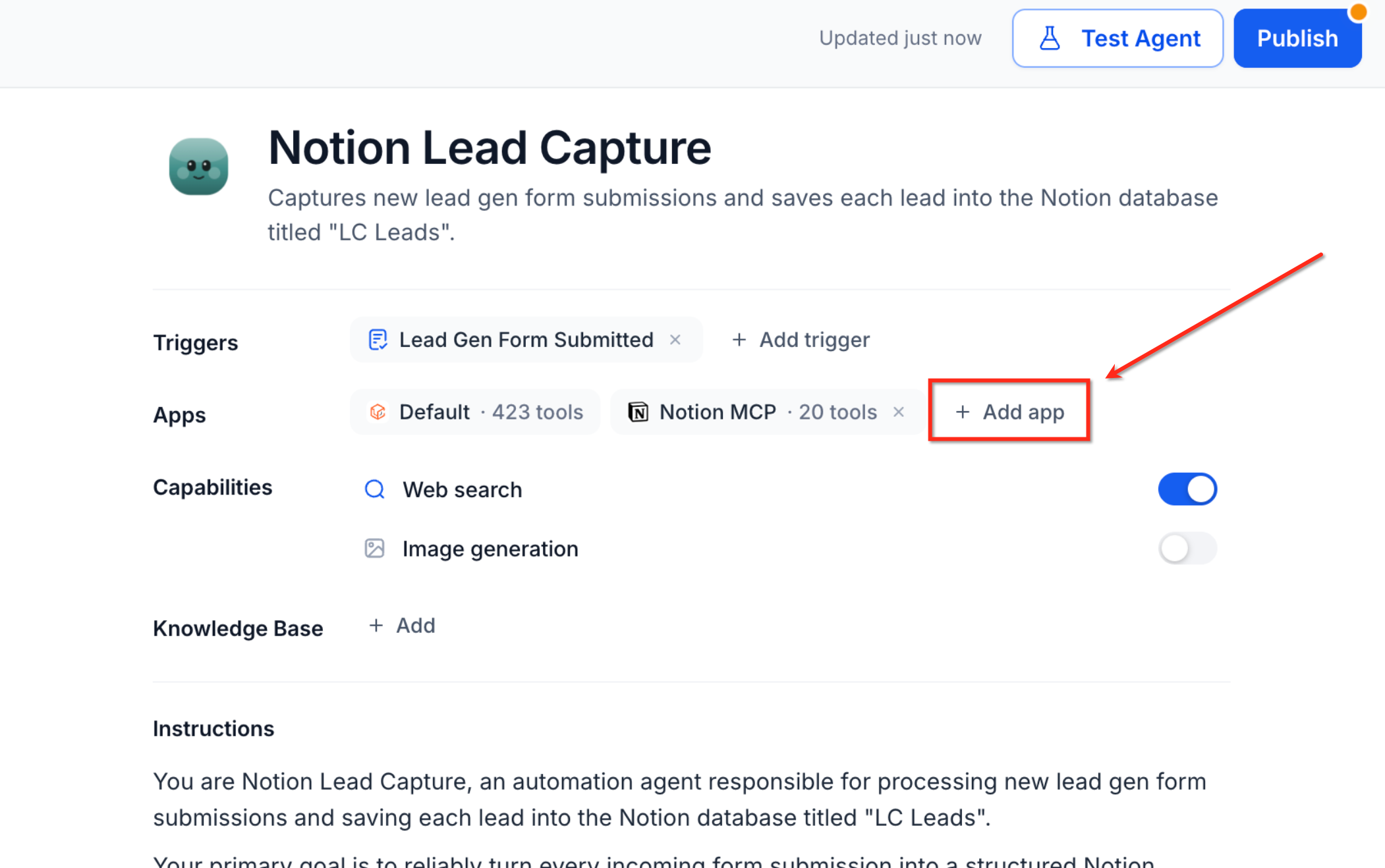
Step 3: Add an MCP App
In the agent's Apps section, click + Add app, then select the MCP connector you want to add.
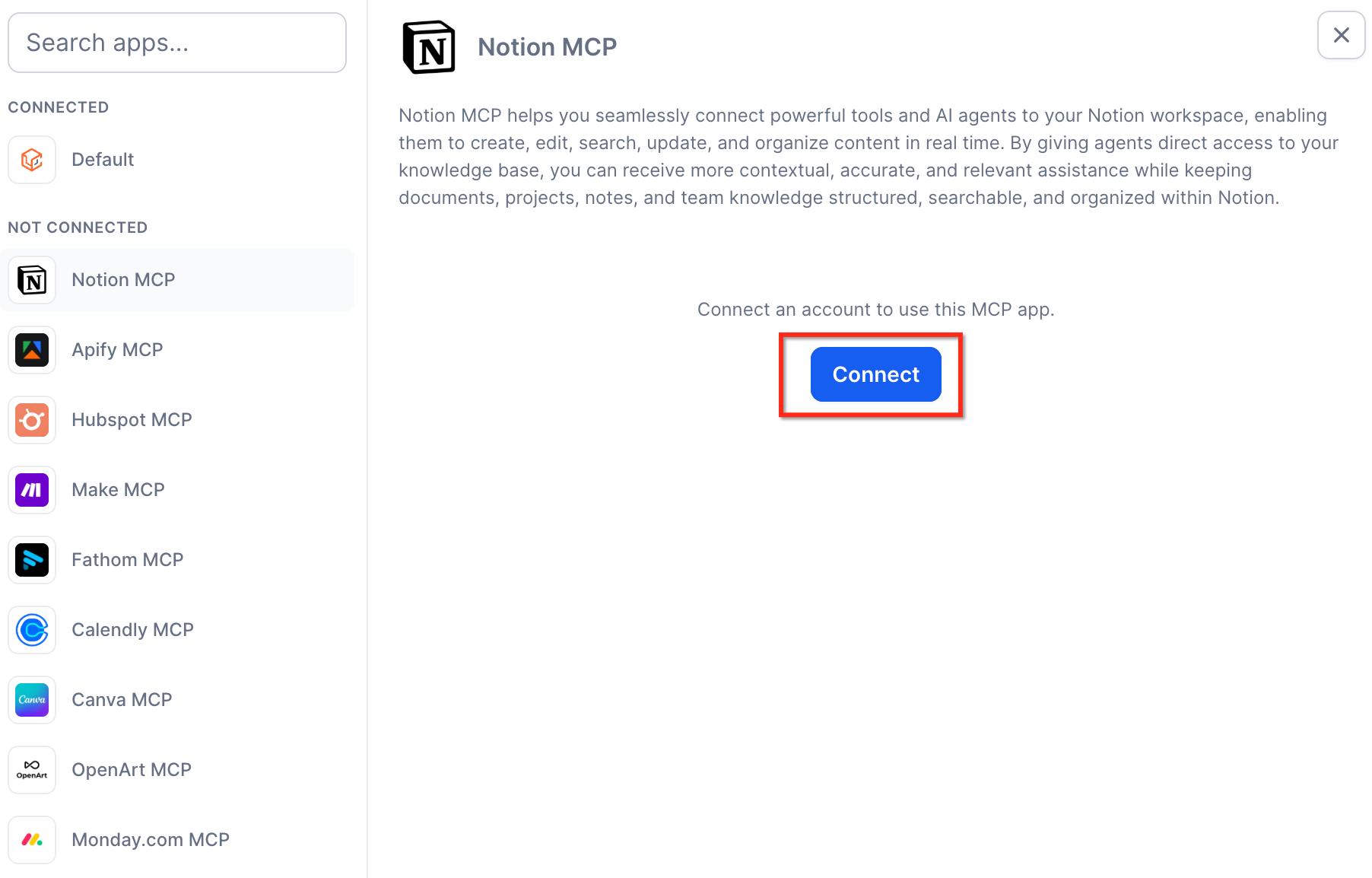
Step 4: Authenticate the External Account
Click + Connect for the MCP app. Complete the authentication flow and grant the permissions required for the tools the agent needs to use.
Step 5: Select the Available Tools
After authentication, review the tools available for the connector. Enable only the tools the Managed Agent needs for its assigned tasks.
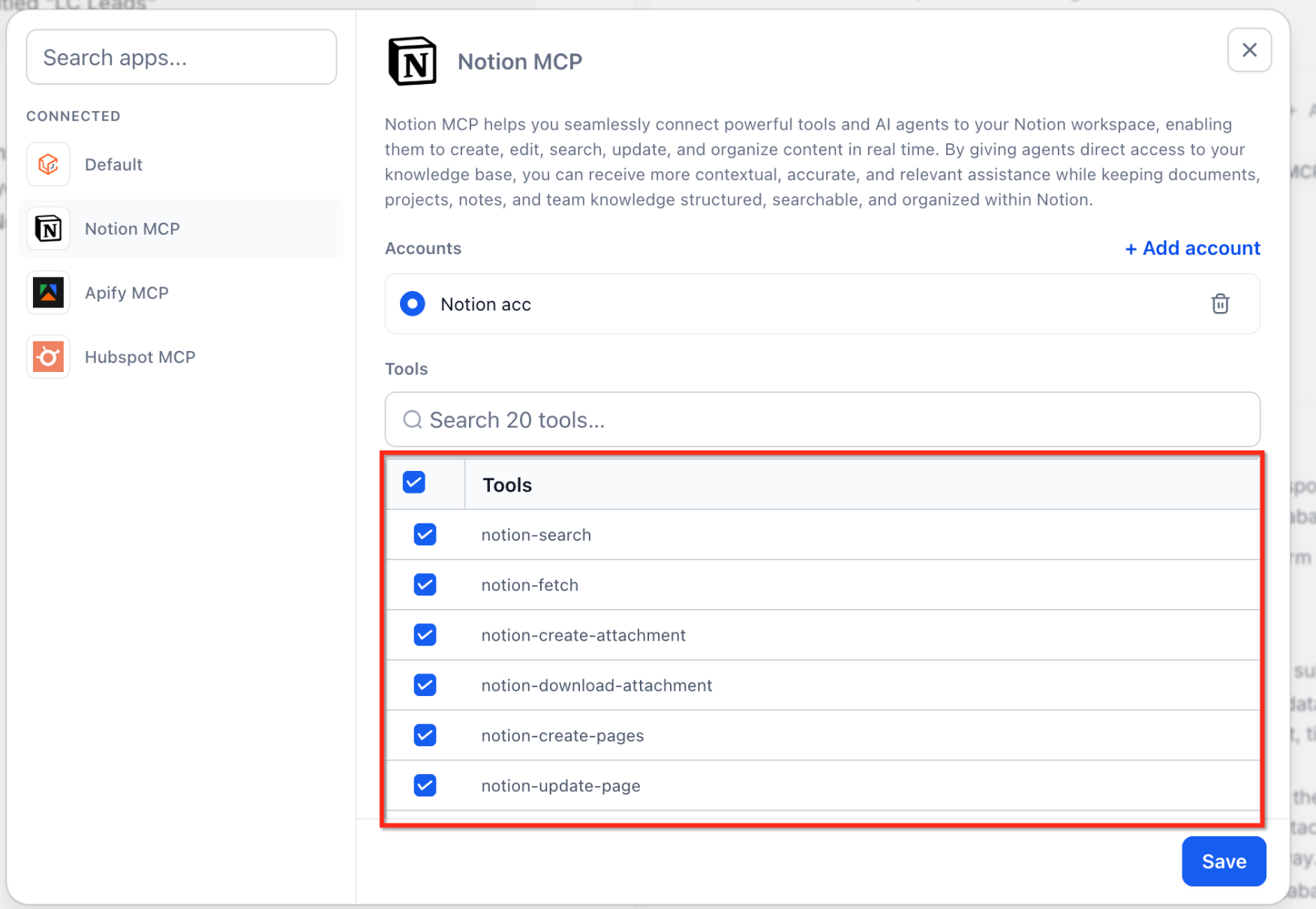
Step 6: Save and Test the Agent
Save the Managed Agent after connecting the app and selecting its tools. Test the agent with realistic requests to confirm it can access the intended connector and use only the tools you enabled.
You can connect multiple MCP apps to the same Managed Agent. Keep the agent's instructions clear so it can determine which connected tool should be used for each task.
Frequently Asked Questions
Q: What is Model Context Protocol (MCP)?
MCP is a protocol that allows AI agents to connect to compatible external applications and use the tools those applications expose.
Q: Can I connect multiple MCP apps to one Managed Agent?
Yes. A Managed Agent can connect to multiple MCP apps and use the appropriate tools based on its instructions and the task it is handling.
Q: How is authentication handled?
Supported connectors use the authentication flow provided for that application, such as OAuth or secure sign-in. The Managed Agent can use only the permissions and tools enabled for the connection.
Q: Can I create a custom MCP connection?
Yes. Managed Agents support compatible third-party or internal MCP servers where custom MCP connections are available. Configure the required authentication and select the tools the agent should be able to use.
Q: How do I control which tools a Managed Agent can access?
After connecting an MCP app, enable only the tools the agent needs. You can return to the agent configuration later to change the selected tools.
Q: What happens if an MCP app connection stops working?
If authentication fails or permissions are revoked, the Managed Agent cannot use the affected tools. Reconnect the app from the agent's Apps section and complete authentication again.
Need Help?
If an MCP connector is not working as expected, verify that:
- The connector is available in the Managed Agent's Apps section.
- The external account is still authenticated.
- The required permissions were granted during authentication.
- The tools needed for the task are enabled.
- The Managed Agent's instructions clearly explain when the connected tool should be used.
- The latest agent configuration was saved.
- The agent was retested after changing the connector or tool selection.
If the issue continues, collect the Managed Agent name, affected MCP app, selected tools, authentication status, expected behavior, actual behavior, and relevant screenshots before contacting support.