
Skills Platform gives AI Agents the capabilities they need to perform work using CRM actions, knowledge sources, reusable instructions, automations, and supported external tools. These capabilities are configured inside the AI Agent experience you are using rather than installed separately. This guide explains the main skill types, the difference between built-in capabilities and Custom Skills, and how to configure and test an agent safely.
Important: Available actions, skills, permissions, and external tools can vary by AI Agent type. Enable only the capabilities required for the agent's role.
TABLE OF CONTENTS
- What Is Skills Platform?
- Skill Types and Capabilities
- Built-In Capabilities vs. Custom Skills
- Configure Skills for AI Agents
- Frequently Asked Questions
- Need Help?
What Is Skills Platform?
Skills Platform is the capability layer that allows AI Agents to perform actions instead of only generating responses. Depending on the agent, a capability can allow it to read or update CRM information, search approved knowledge, send messages, book appointments, participate in automations, or use supported external tools.
There is no separate Skills Platform installation. Capabilities are configured within supported AI Agent experiences such as Voice AI, Conversation AI, Agent Studio, and Managed Agents.
Skill Types and Capabilities
Different capability types serve different purposes. Use the type that matches what the agent needs to accomplish.
| Type | Purpose | Example |
|---|---|---|
| Built-In Capability | Allows the agent to perform an operation. | Send a message, update CRM data, apply a tag, or book an appointment. |
| Custom Skill | Provides reusable instructions for how a Managed Agent should perform a repeatable task. | Lead qualification rules or a standardized meeting-summary format. |
| Knowledge Source | Provides approved factual information the agent can retrieve. | Policies, FAQs, procedures, or product information. |
| External Tool or Connector | Allows supported agents to interact with an external system. | A supported MCP connector or external application. |
Built-In Capabilities vs. Custom Skills
Built-in capabilities and Custom Skills are not the same.
- Built-in capabilities determine what the agent can actually do, such as updating data or sending a message.
- Custom Skills provide reusable instructions describing how a Managed Agent should perform a specific task.
A Custom Skill can include:
- A clear skill name and description
- Task instructions or process steps
- Business rules or qualification criteria
- Required output formats
- Restrictions or guardrails
- Escalation or follow-up conditions
Custom Skills can be enabled or disabled for individual Managed Agents without deleting the skill from the shared skills library.
Configure Skills for AI Agents
Step 1: Open the AI Agent
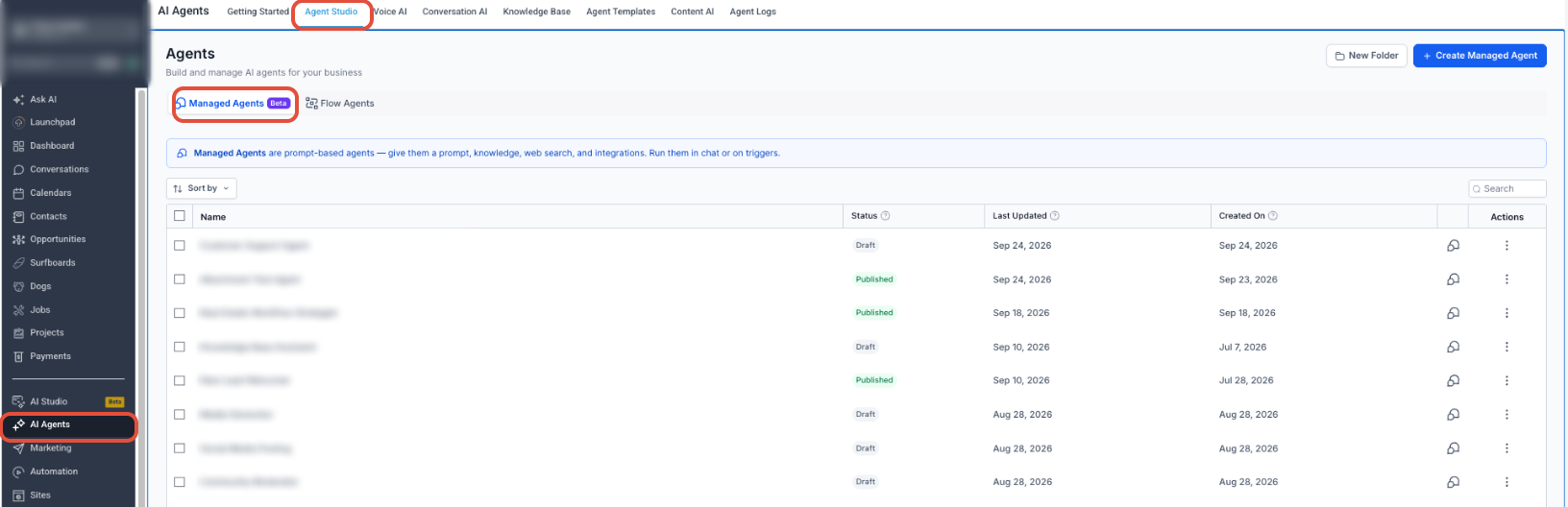
From the Sub-Account view, open the AI Agent experience you want to configure. For Managed Agents, go to AI Agents → Agent Studio → Managed Agents.
Step 2: Define the Agent's Responsibility
Decide what the agent should and should not do. Use that scope to determine which actions, knowledge sources, Custom Skills, and external tools are required.
Start with the minimum access required for the agent's role and expand capabilities only when needed.
Step 3: Enable the Required Actions and Tools
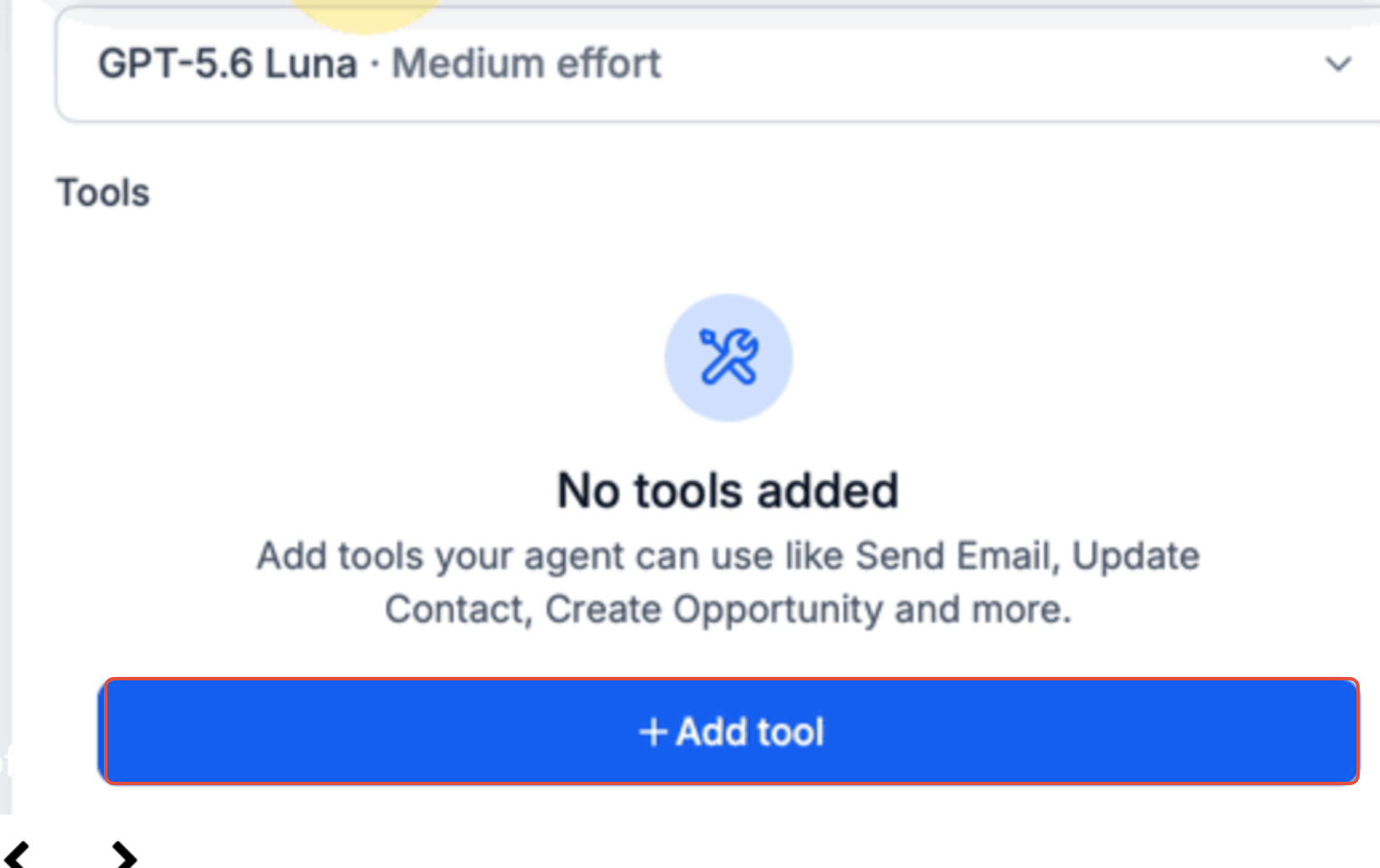
Add or enable only the built-in actions the agent needs. Depending on the agent type, these can include messaging, CRM updates, tags, custom data, notifications, and other supported actions.
Step 4: Connect Knowledge Sources
Connect the approved knowledge sources the agent needs for factual answers. Keep factual reference material in the Knowledge Base and use instructions or Custom Skills for repeatable processes.
Step 5: Add Custom Skills When Needed
For Managed Agents, use Custom Skills when the agent needs reusable instructions for a specific task.
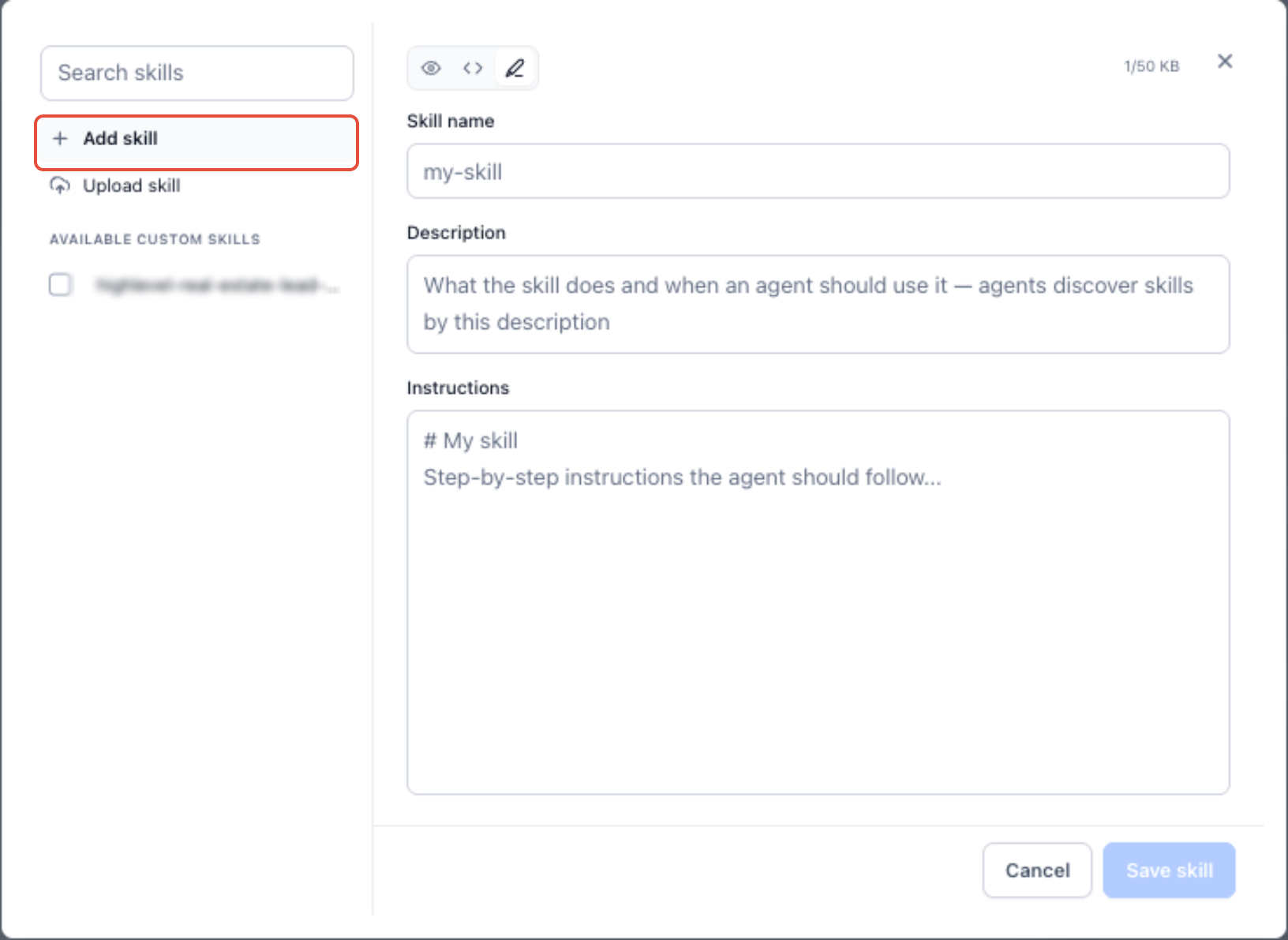
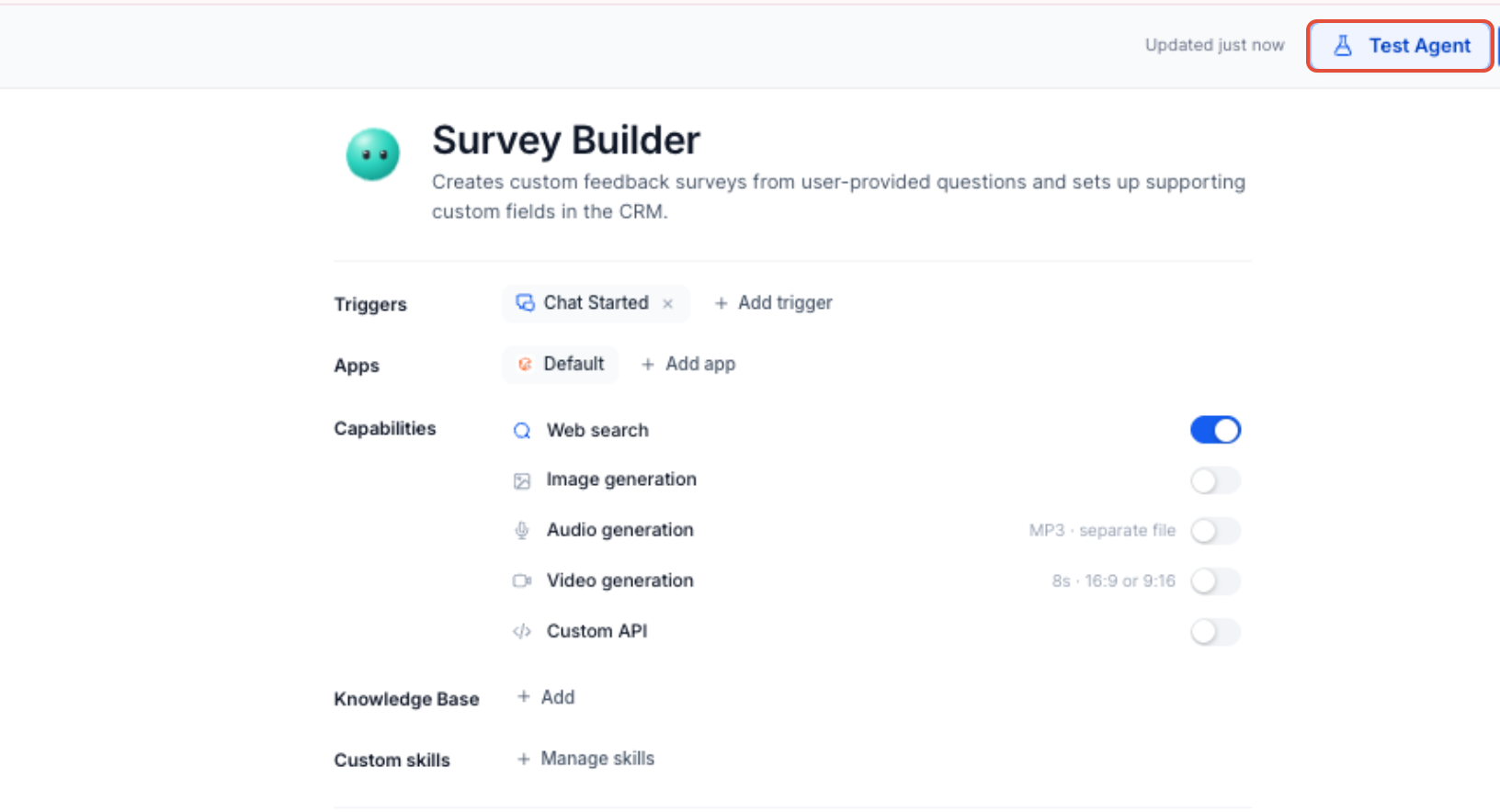
- Open Custom skills and select Manage skills.
- Click Add skill.
- Enter a clear skill name and description.
- Add the process, rules, output format, or other instructions the agent should follow.
- Save the skill and enable it for the Managed Agents that need it.
Step 6: Connect External Tools When Required
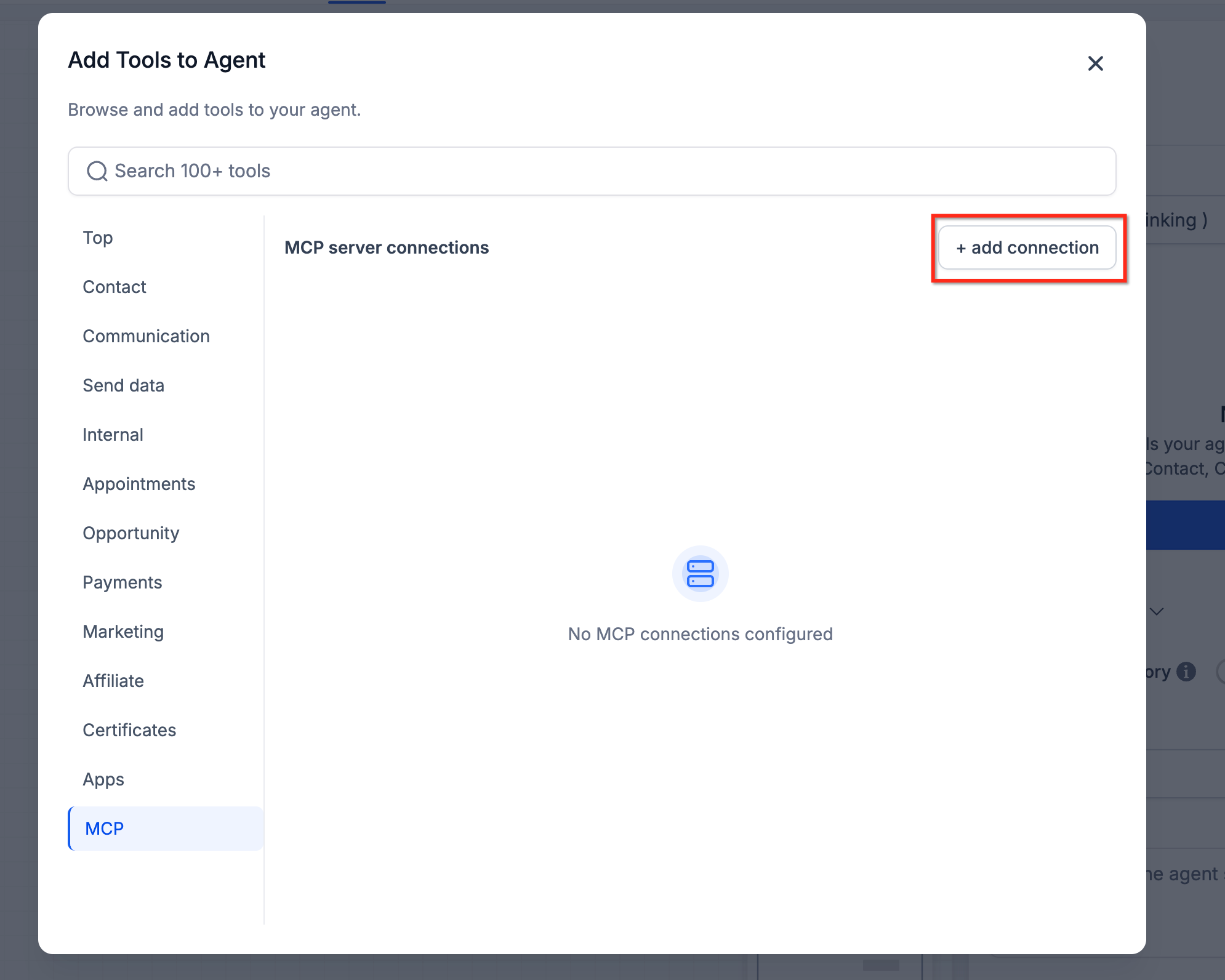
If the agent needs to work with an external system, add a supported connector or MCP integration where available. Authenticate the connection, then enable only the tools the agent needs.
Step 7: Test and Monitor the Agent
Test realistic requests before using the agent in production. Confirm that it selects the intended capability, receives the correct information, performs the expected action, and handles failures appropriately.
For Managed Agents, use the Activity tab to review executions, including completed steps, skills and tools used, inputs, outputs, timing, and run results.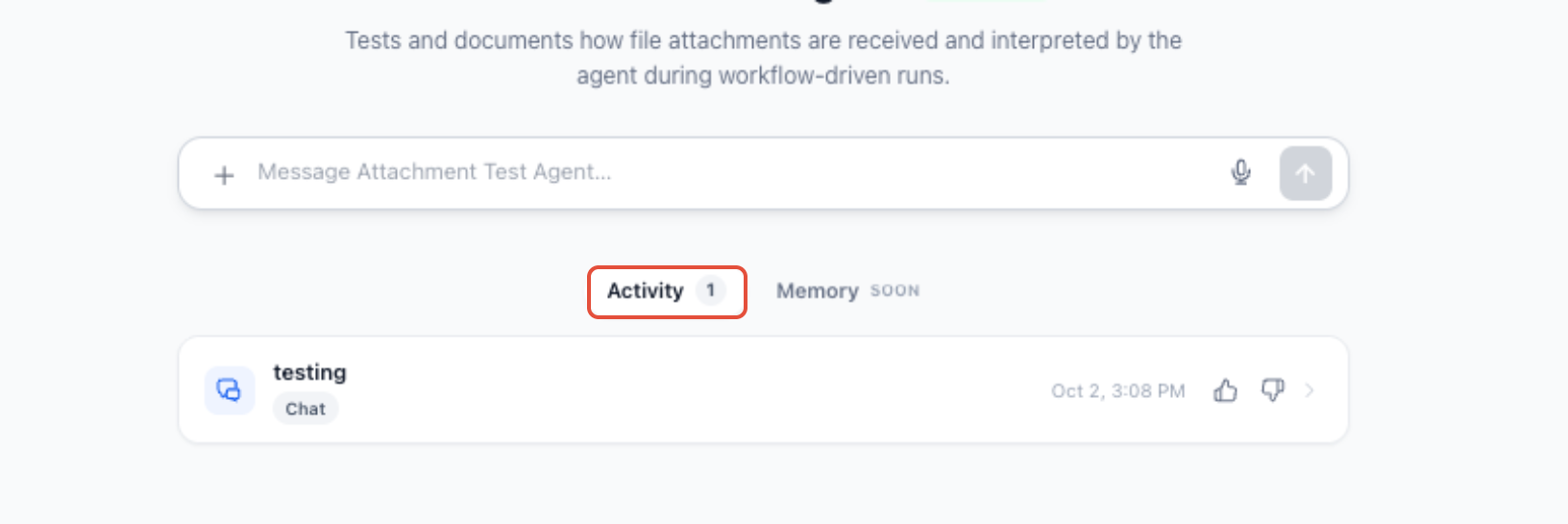
Frequently Asked Questions
Q: Do I need to enable Skills Platform separately?
No. Configure the available capabilities directly inside the AI Agent experience you are using.
Q: Are Custom Skills the same as built-in capabilities?
No. Built-in capabilities let an agent perform an operation. Custom Skills provide reusable instructions for how a Managed Agent should perform a task.
Q: Can one Custom Skill be used by multiple Managed Agents?
Yes. A Custom Skill can be shared and enabled or disabled for individual Managed Agents.
Q: Should factual information go in a Custom Skill?
Use the Knowledge Base for factual reference material. Use a Custom Skill when the agent needs reusable instructions for performing a process.
Q: Can AI Agents use external applications?
Yes, when the agent type and connector support it. Available external tools can vary by AI Agent.
Q: How can I see which skill or tool a Managed Agent used?
Open the Managed Agent's Activity tab and review the relevant execution.
Need Help?
If an AI Agent is not using a skill or tool as expected, verify that:
- The capability is supported by the AI Agent type you are configuring.
- The required action, Custom Skill, knowledge source, or external tool is enabled.
- Custom Skill descriptions clearly explain when each skill should be used.
- The correct Knowledge Base source is connected.
- External connector authentication is still valid.
- The agent has only the actions and tools required for its role.
- Managed Agent execution details were reviewed in the Activity tab.
If the issue continues, collect the agent name, agent type, affected skill or tool, run ID when available, relevant input, error message, and screenshots of the execution before contacting support.