
The Account Billing Dashboard gives sub-account users one place to manage subscriptions, saved payment methods, billing information, invoices, transaction history, and wallet balances. Use it to review recurring charges, keep payment information current, download invoices, and monitor available wallet funds.
TABLE OF CONTENTS
- Open the Billing Dashboard
- Manage Subscriptions
- Manage Payment Methods
- Update Billing Information
- View Charges, Invoices, and Transactions
- Manage Wallet Balance
- Frequently Asked Questions
- Need Help?
Open the Billing Dashboard
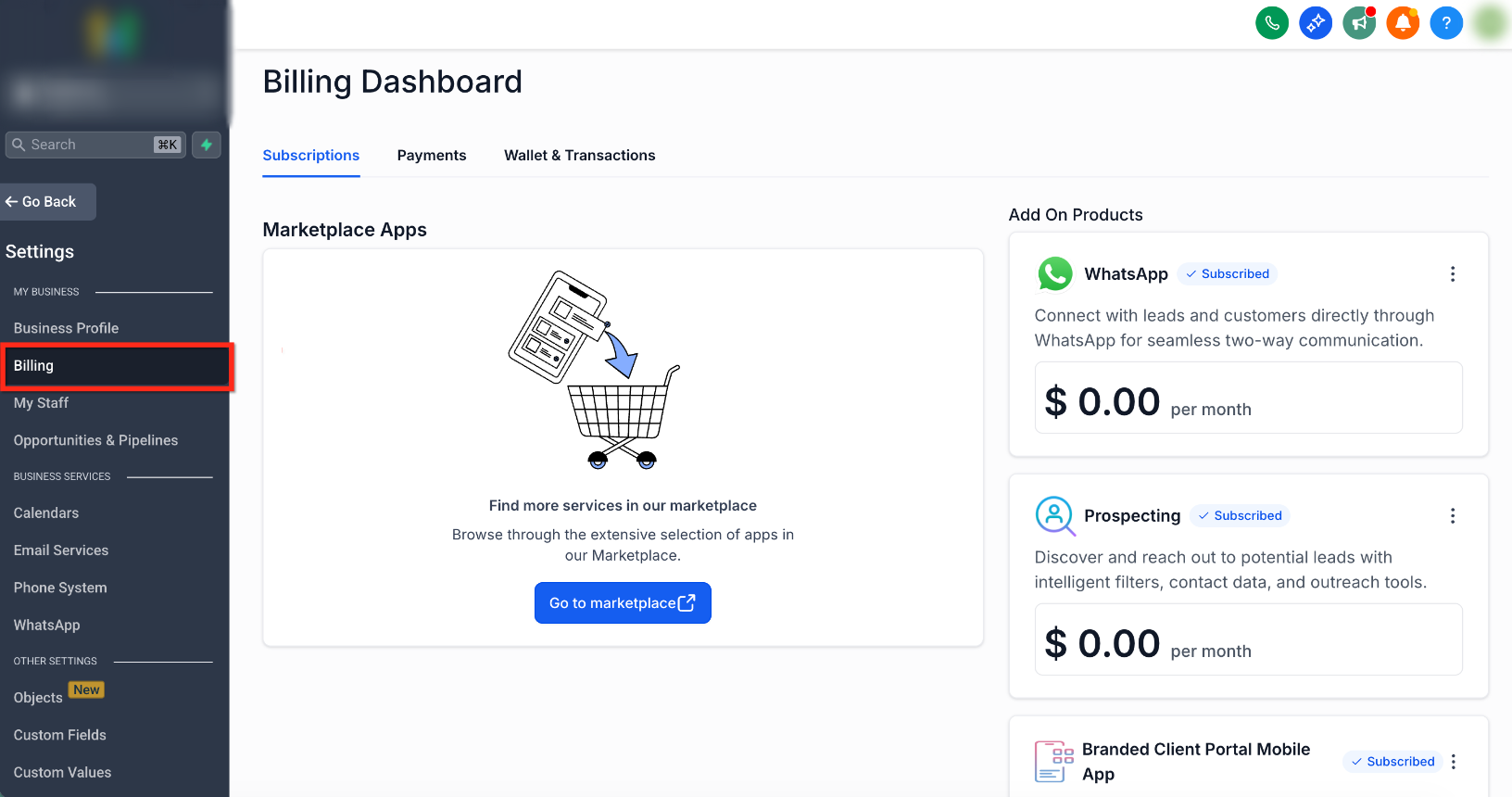
From the Sub-Account view, go to Settings → Billing.
The Billing Dashboard provides access to subscriptions, payment methods, billing information, charges and invoices, transaction history, and wallet funds.
Manage Subscriptions
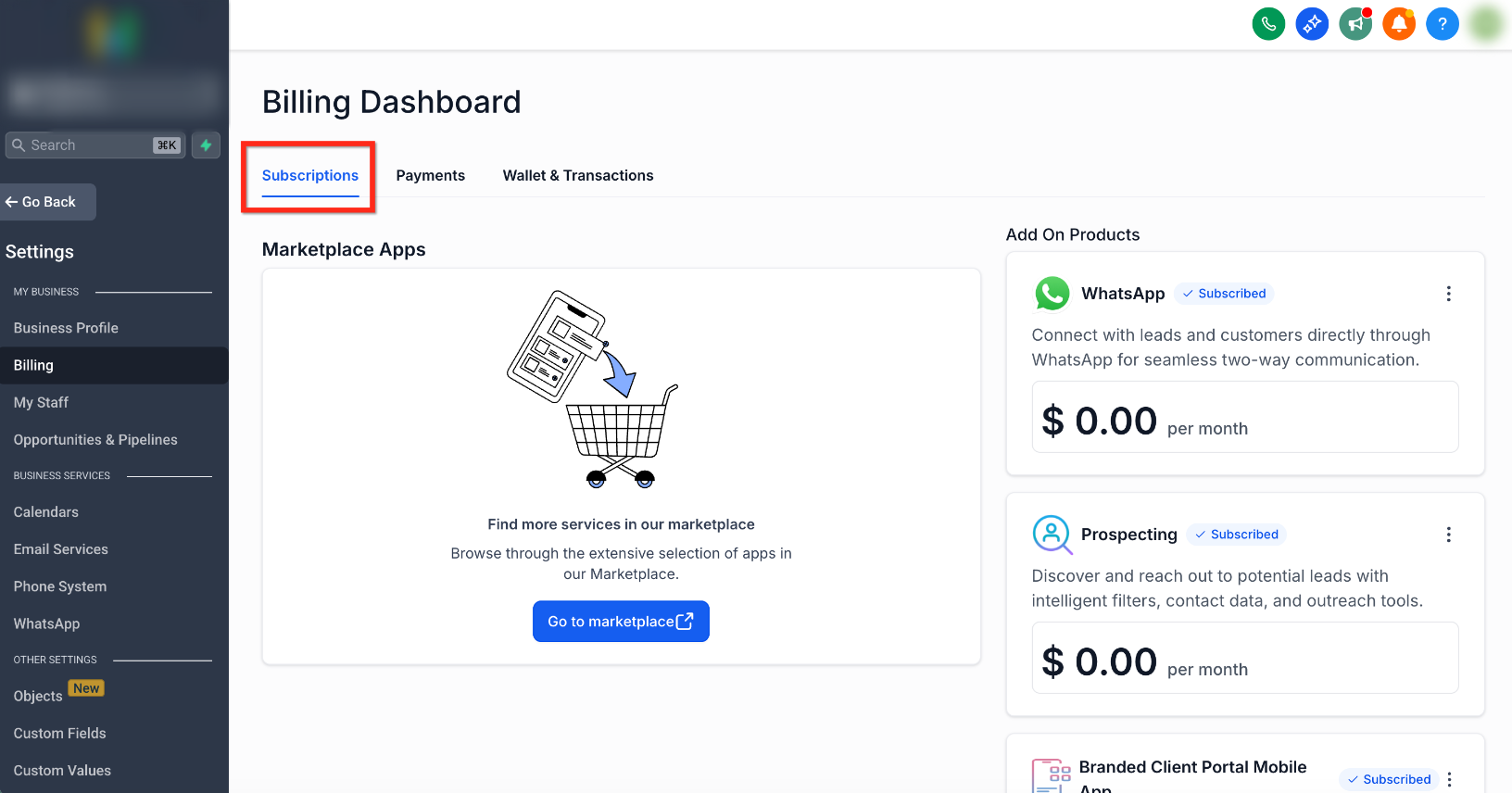
The Subscriptions area shows recurring services associated with the sub-account. Depending on the account, this can include:
- SaaS subscriptions
- Reselling subscriptions
- Marketplace app subscriptions
Manage Payment Methods
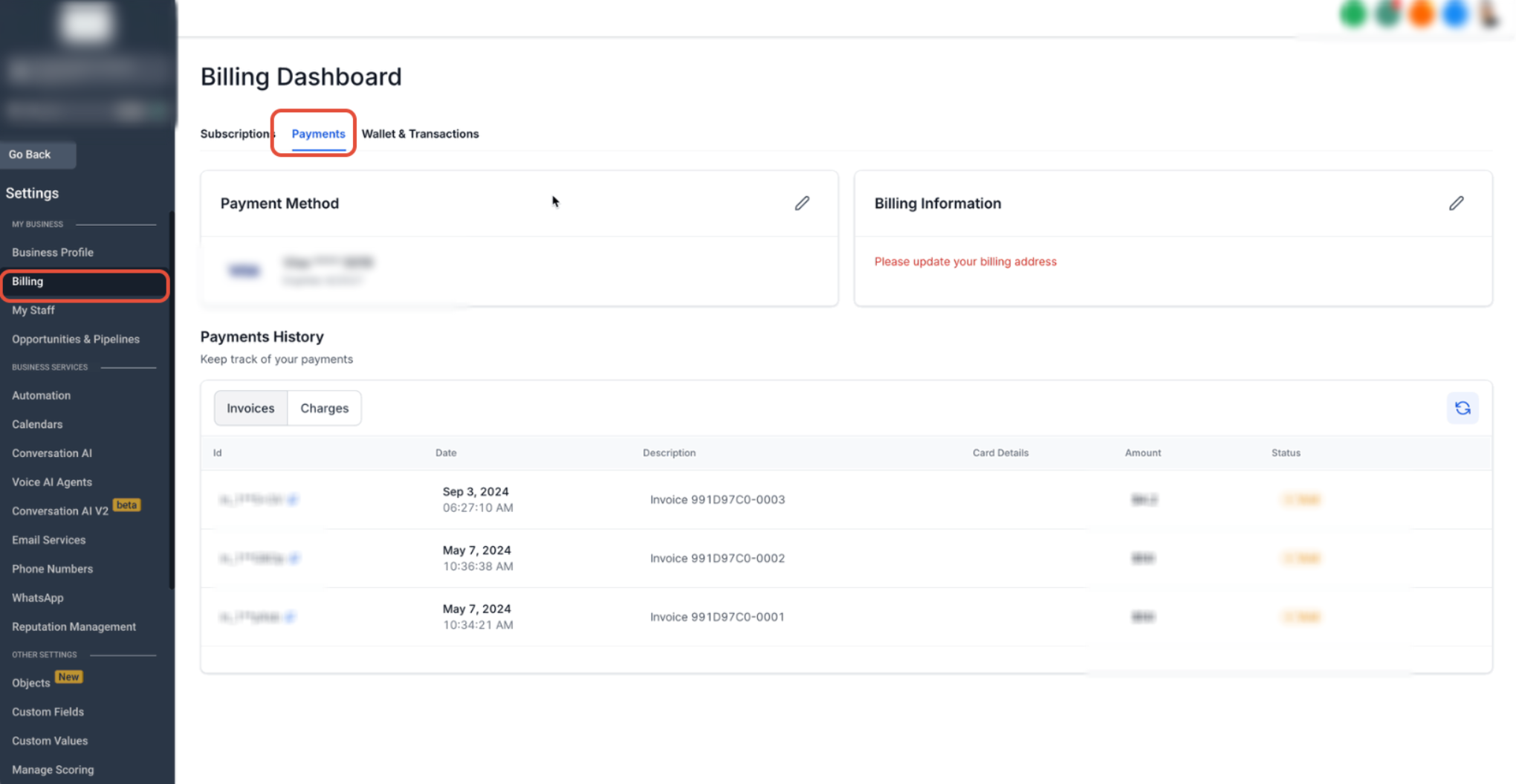
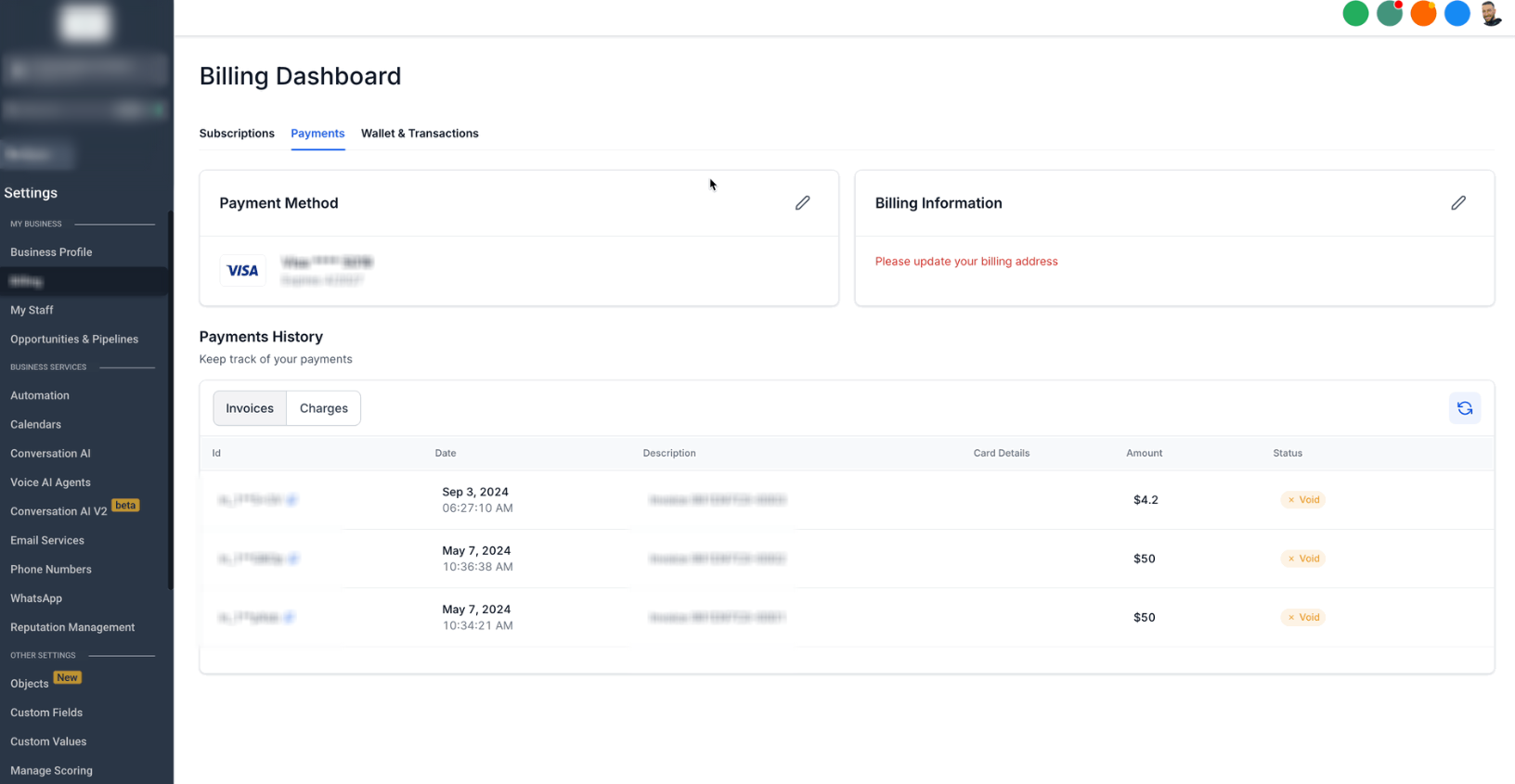
Use the Payment Methods area to add cards, remove unused cards, and select the primary payment method used for supported billing activity.
- Add New Card: Add another saved payment method.
- Set Primary Card: Choose the default card for supported billing activity.
- Delete Card: Remove a saved payment method that is no longer needed.
For an active SaaS V2 subscription, changing the sub-account's primary card also updates the payment method used for that sub-account's SaaS subscription. Other subscriptions associated with the same contact are not changed. The primary card is also used for supported wallet recharges.
Delete a Saved Payment Method
- Open the Payments tab in Billing.
- Select Manage your payment methods.
- Locate the card you want to remove.
- Click the three dots (⋮).
- Select Delete Card.
- Review the confirmation and click Delete Now.
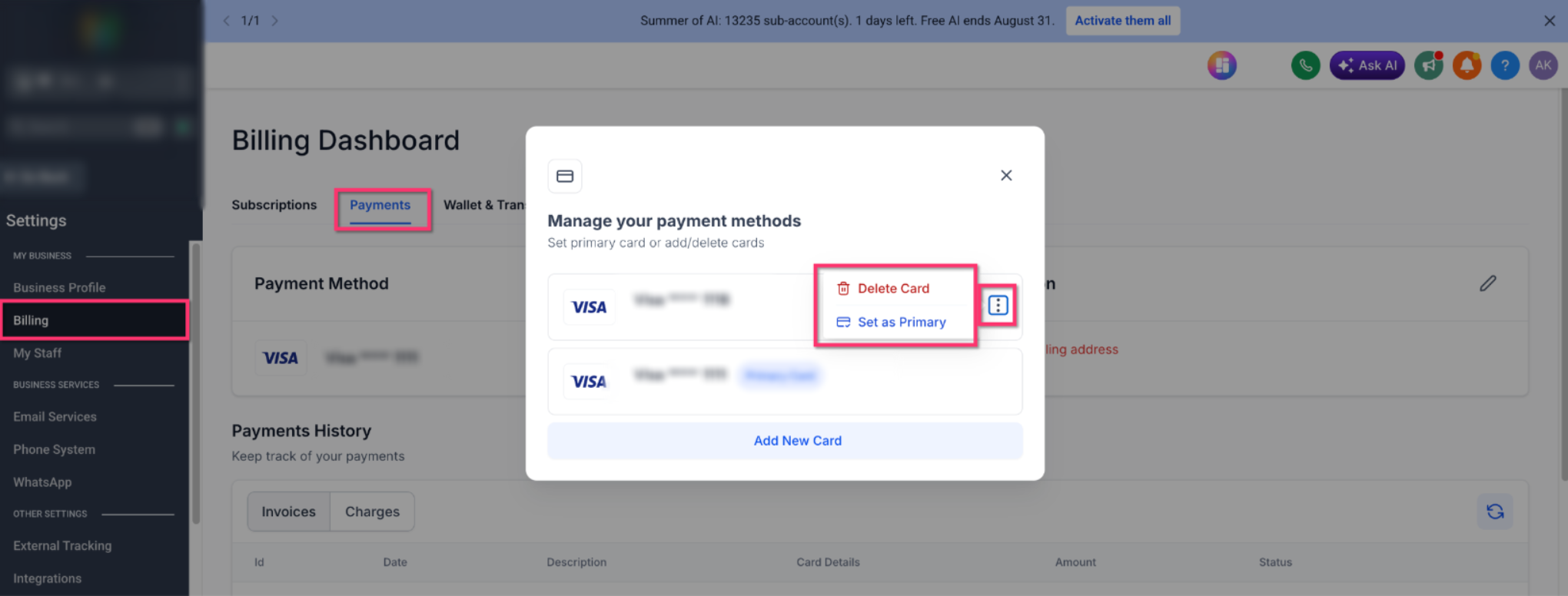
If the card is associated with an active subscription, review any warning shown before deleting it and update the affected subscription payment method when necessary.
Update Billing Information
Use the Billing Information area to keep the billing address associated with the sub-account current.
View Charges, Invoices, and Transactions
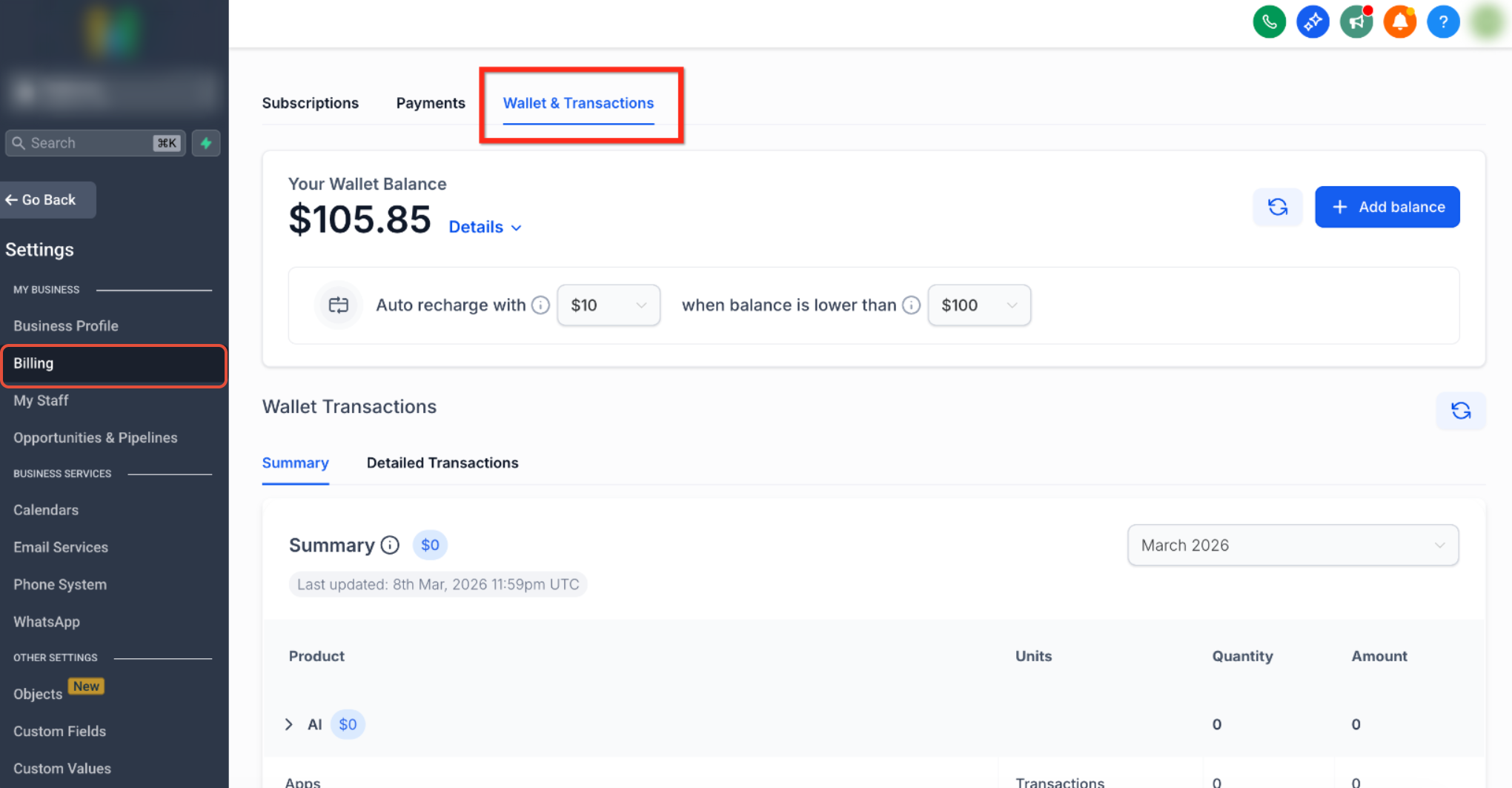
Use the charges and transaction history area to review billing activity, invoice details, products associated with charges, transaction IDs, and payment status.
Review an Invoice
The invoice list lets you review the date, amount, payment status, products, and transaction information associated with a charge.
If an invoice contains multiple products, the first product can appear with a +n indicator showing that additional products are included. You can also use the copy control beside a Transaction ID when you need the full identifier.
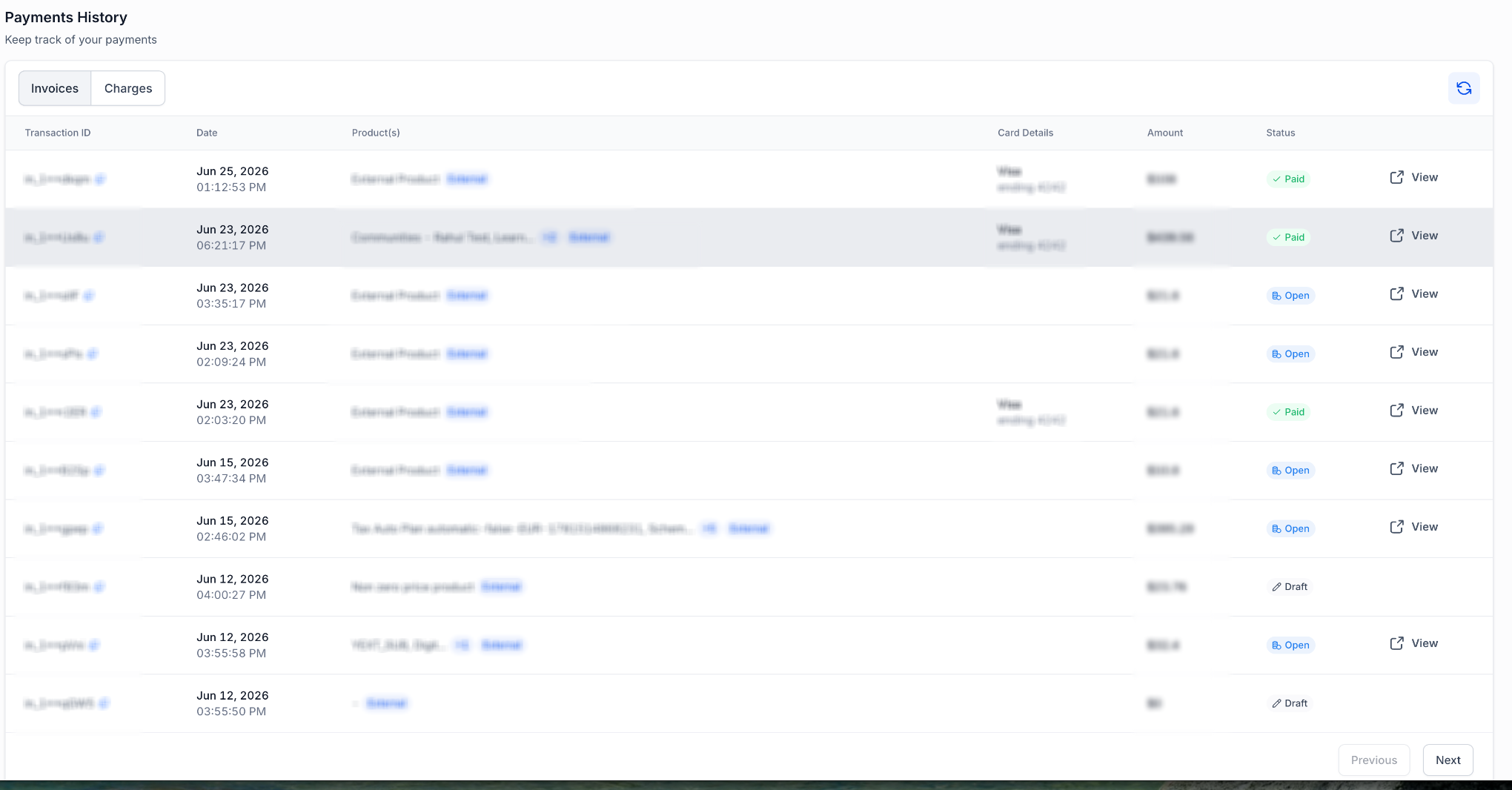
Select View to open invoice details. Available invoice actions can include viewing additional payment details or downloading the invoice as a PDF.
Manage Wallet Balance
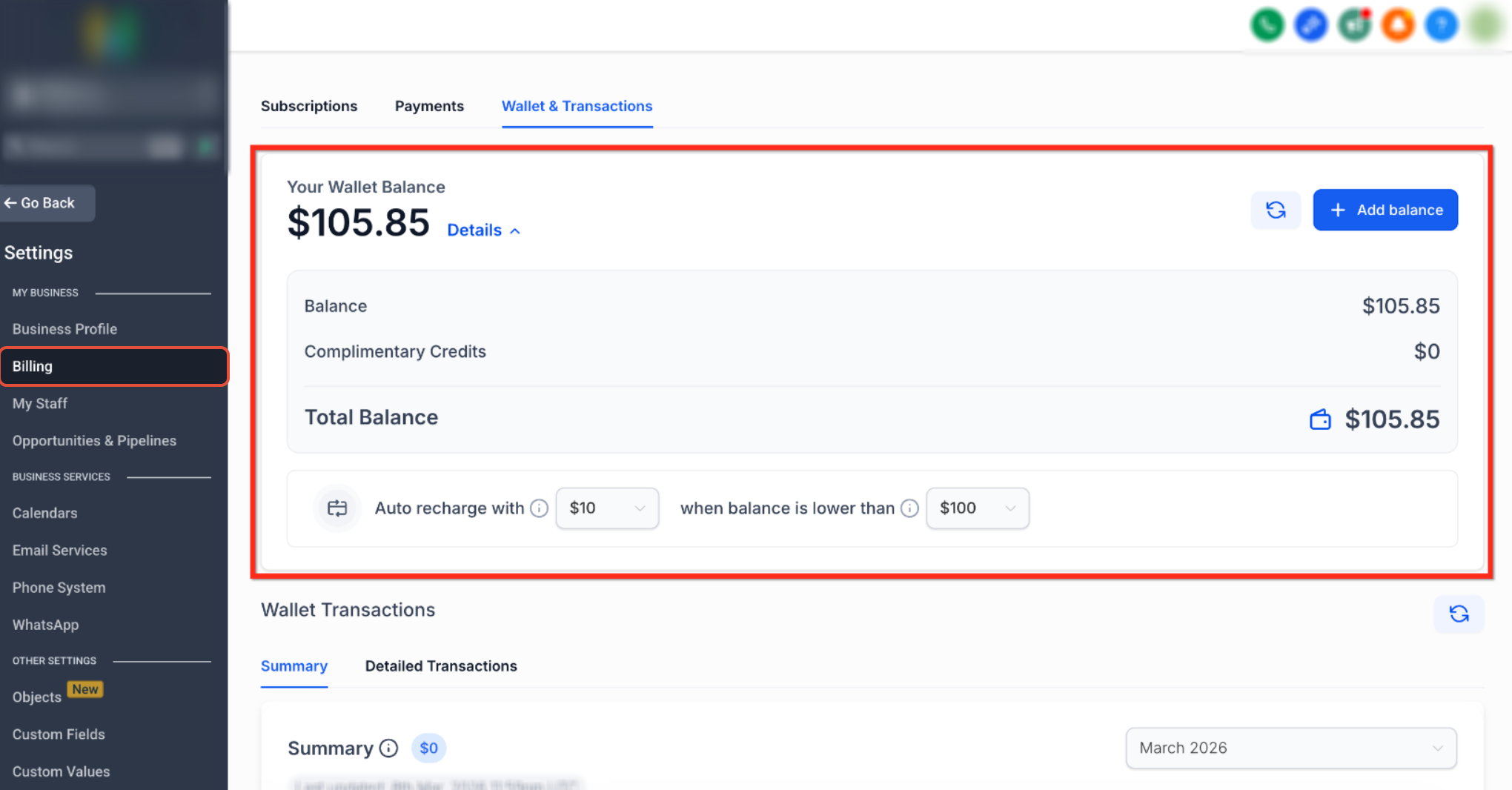
The Wallet stores credits used for supported paid services. From the Billing Dashboard, you can review the current wallet balance, monitor complimentary credits, and add funds when needed.
When auto-recharge is configured, the default payment method can be charged automatically when wallet credits fall below the configured threshold.
Frequently Asked Questions
Q: How do I add a new payment method?
Open the Payment Methods area in Billing, select Add New Card, and enter the required card details.
Q: Can I have multiple active subscriptions?
Yes. Different subscription types can appear in the Subscriptions area when they are active for the sub-account.
Q: Where can I view previous invoices?
Open the charges and transaction history area in Billing to review invoice details and download available invoices.
Q: How do I update my billing address?
Open the Billing Information area and use the available edit control to update the billing address.
Q: How do I add funds to the wallet?
Open the Wallet area, select Add Funds, and follow the prompts to add the desired amount.
Need Help?
If something in the Billing Dashboard does not look correct, verify that:
- You are working in the correct Sub-Account.
- The correct primary payment method is selected.
- Any card being removed is not still required by an active subscription.
- Billing information is current.
- The correct invoice or Transaction ID is being reviewed.
- Wallet balance and auto-recharge settings are configured as expected.
If the issue continues, collect the affected subscription or charge, invoice or Transaction ID when available, payment method details, expected behavior, actual behavior, and relevant screenshots before contacting support.