
Human Handover lets Conversation AI transfer a conversation to a team member when a contact asks for human assistance, the bot cannot find the information needed to respond, or repeated attempts fail to resolve the issue. This guide explains how to configure handover scenarios, choose what happens after a handover, and make sure the assigned user is notified.
TABLE OF CONTENTS
- What Is Human Handover?
- Set Up Human Handover
- Configure Handover Actions
- Configure Assigned User Notifications
- Frequently Asked Questions
- Need Help?
What Is Human Handover?
Human Handover transfers a Conversation AI interaction to a human team member when a configured handover condition is met. This gives contacts a path to human assistance when they request it or when the bot can no longer resolve the conversation effectively.
Set Up Human Handover
Step 1: Open the Conversation AI Bot
From the Sub-Account view, go to AI Agents and select Conversation AI.
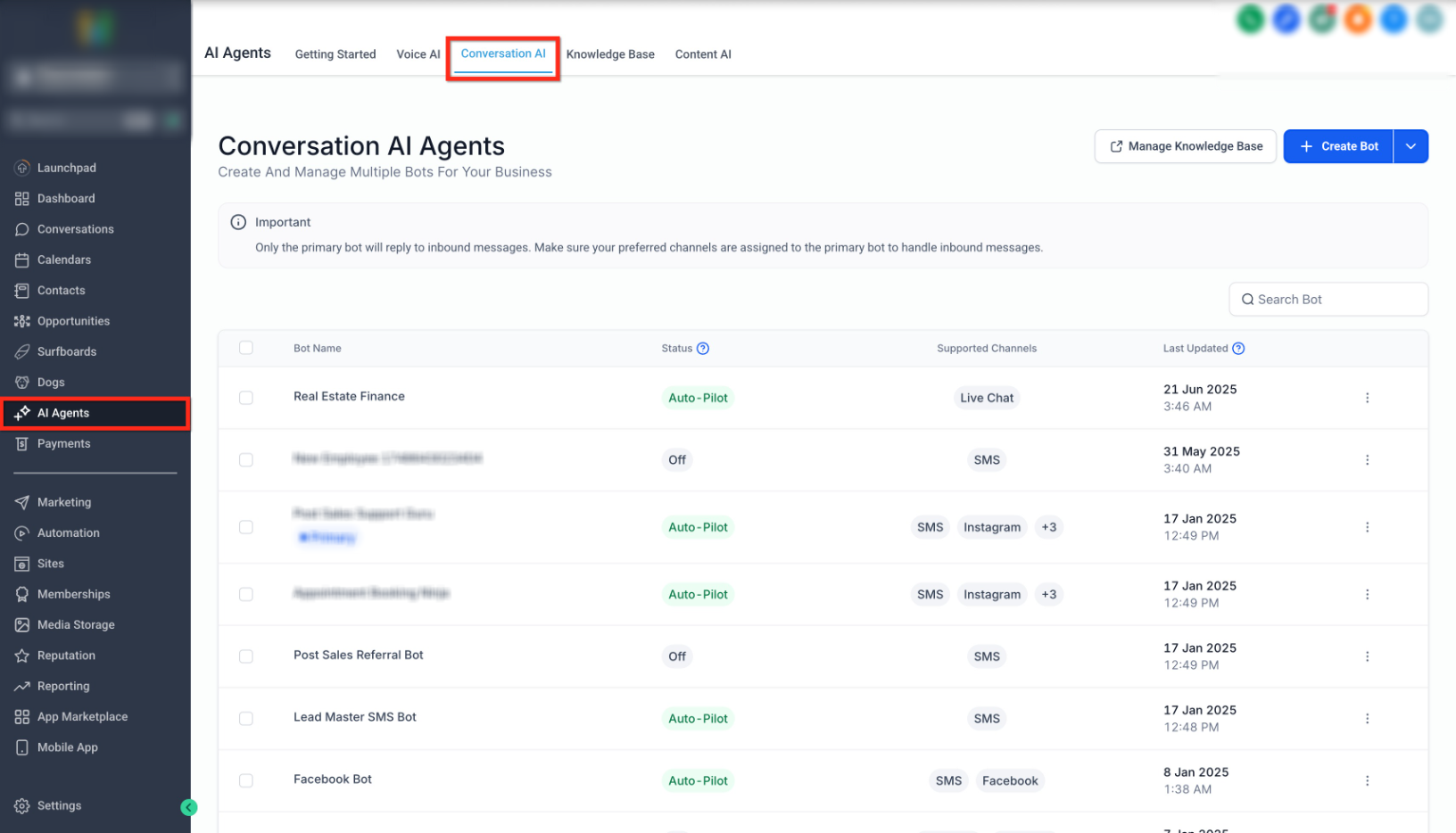
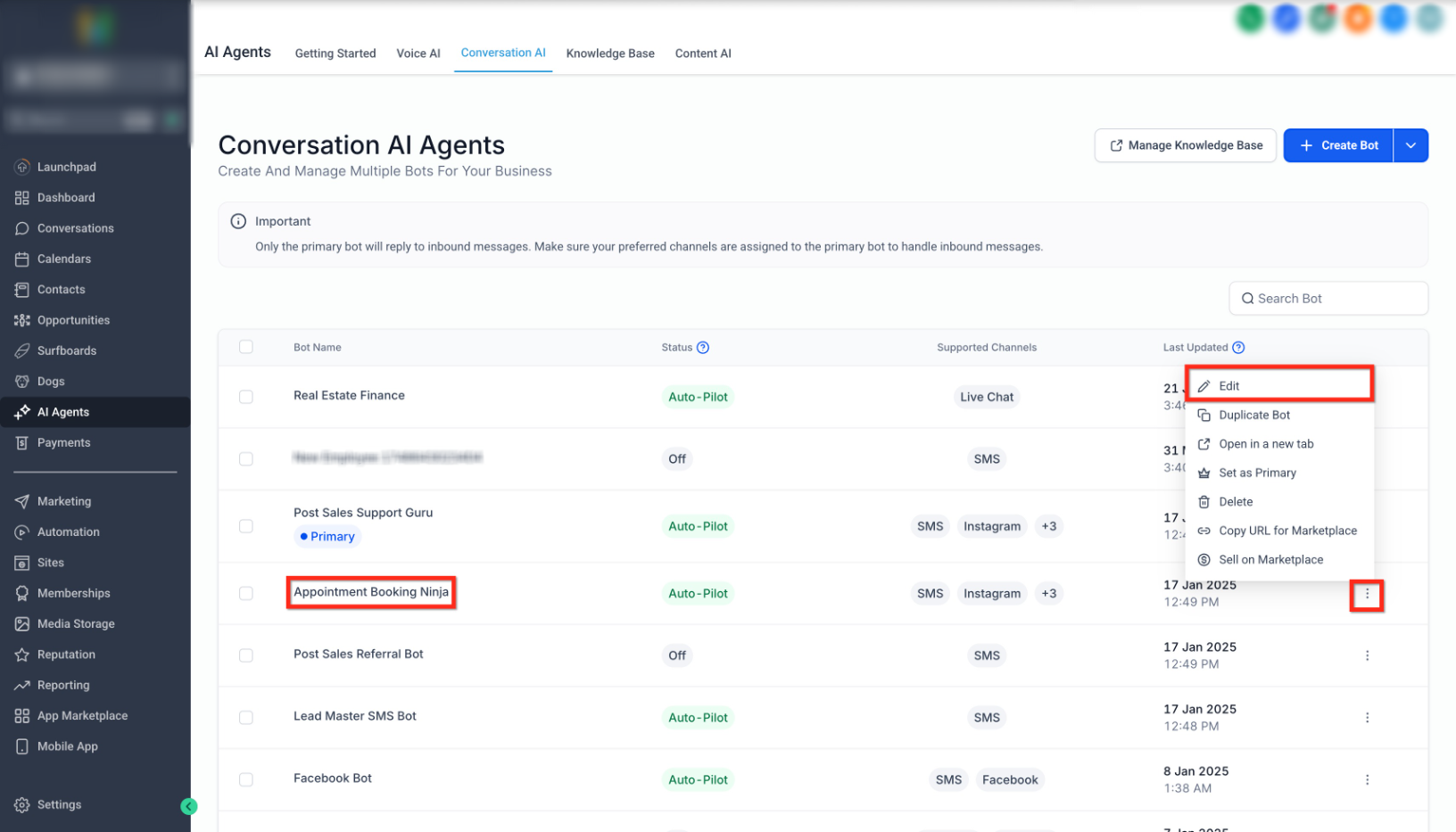
Select the bot you want to configure. You can also open the three-dot menu beside the bot and click Edit.
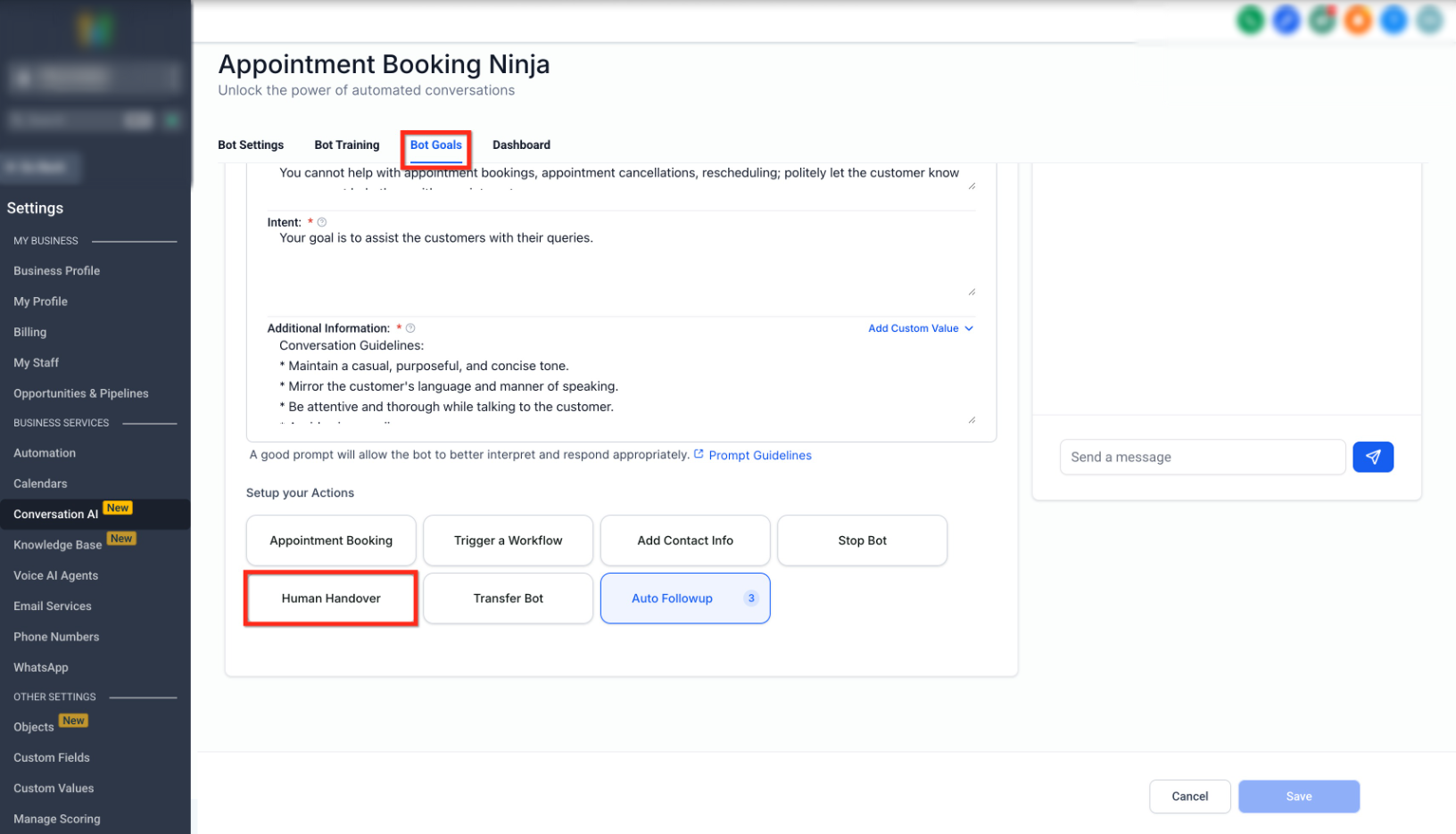
Inside the bot, open Bot Goals. Scroll to Setup Your Actions, then select Human Handover.
Step 2: Enable Handover Scenarios
Enable the scenarios that should cause Conversation AI to hand the conversation over to a person.
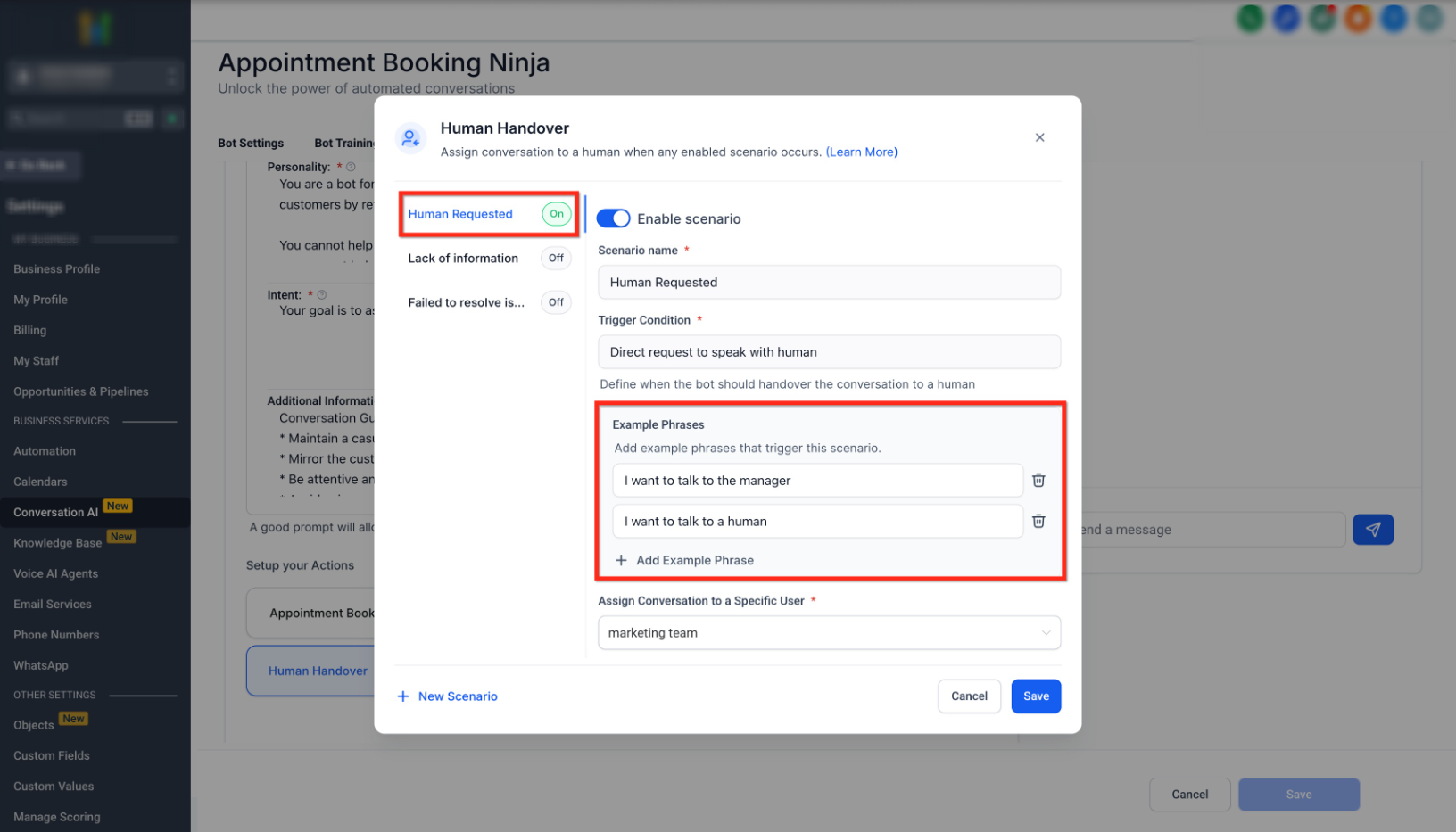
Human Requested
- Turn on Enable Scenario.
- This scenario triggers when the contact explicitly asks to speak with a human.
- Use + Add Example Phrase if you want to provide additional phrases the bot should recognize.
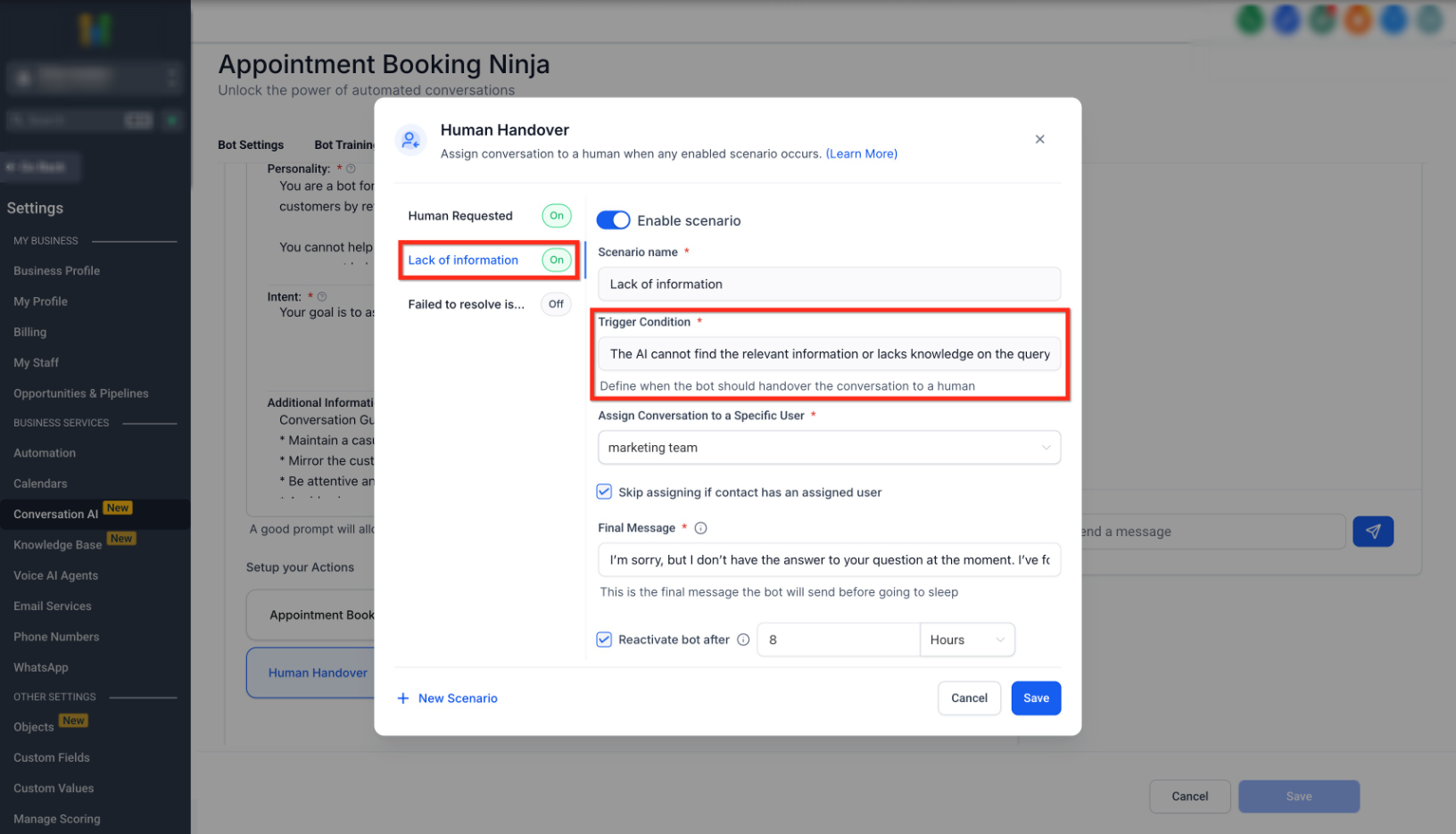
Lack of Information
- Turn on Enable Scenario.
- This scenario triggers when the bot cannot find enough information to answer the contact.
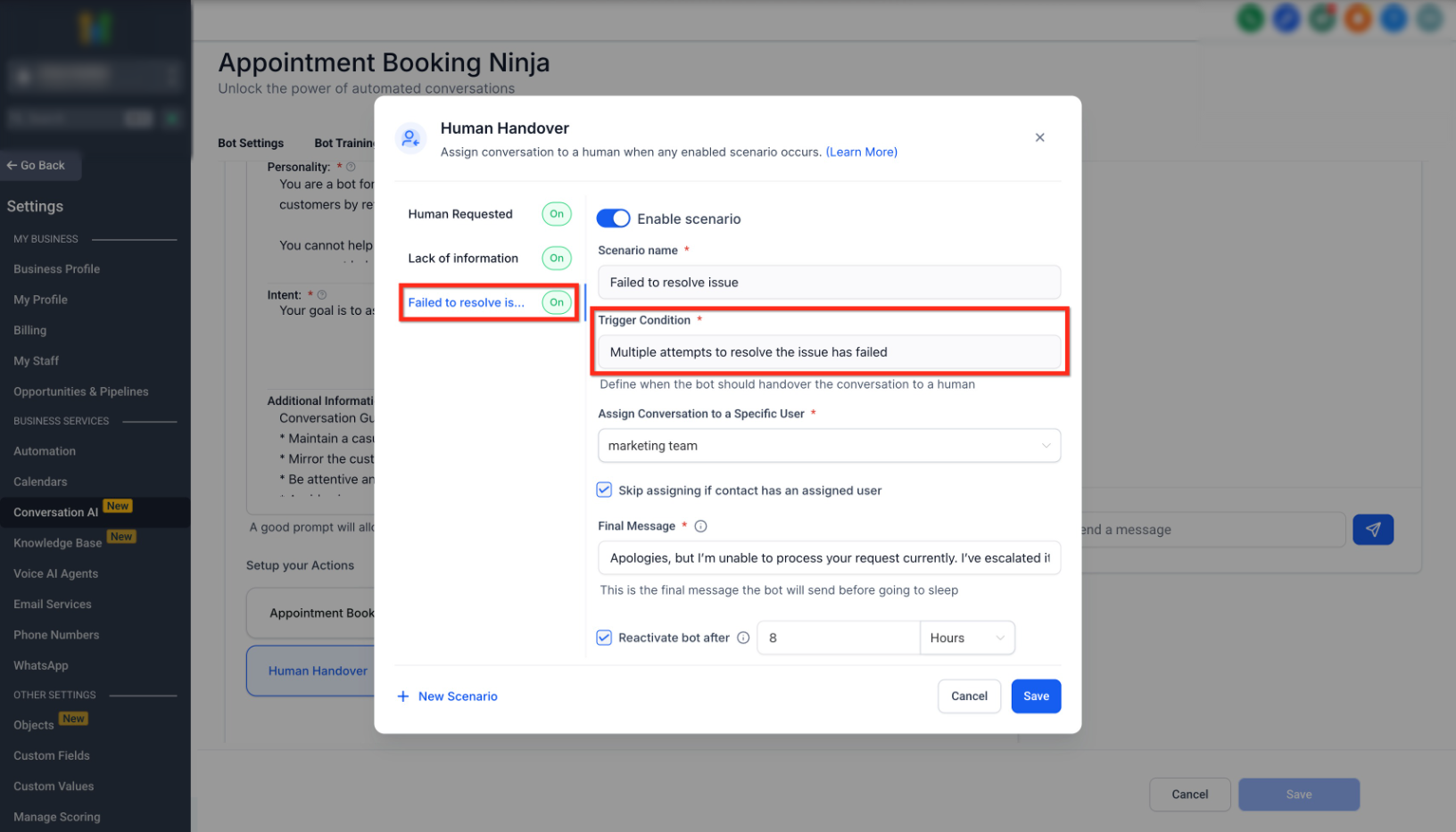
Failed to Resolve Issue
- Turn on Enable Scenario.
- This scenario triggers when repeated attempts to resolve the issue fail.
- Supports up to 2 retries.
Configure Handover Actions
After selecting the handover scenarios, configure what should happen when a handover is triggered.
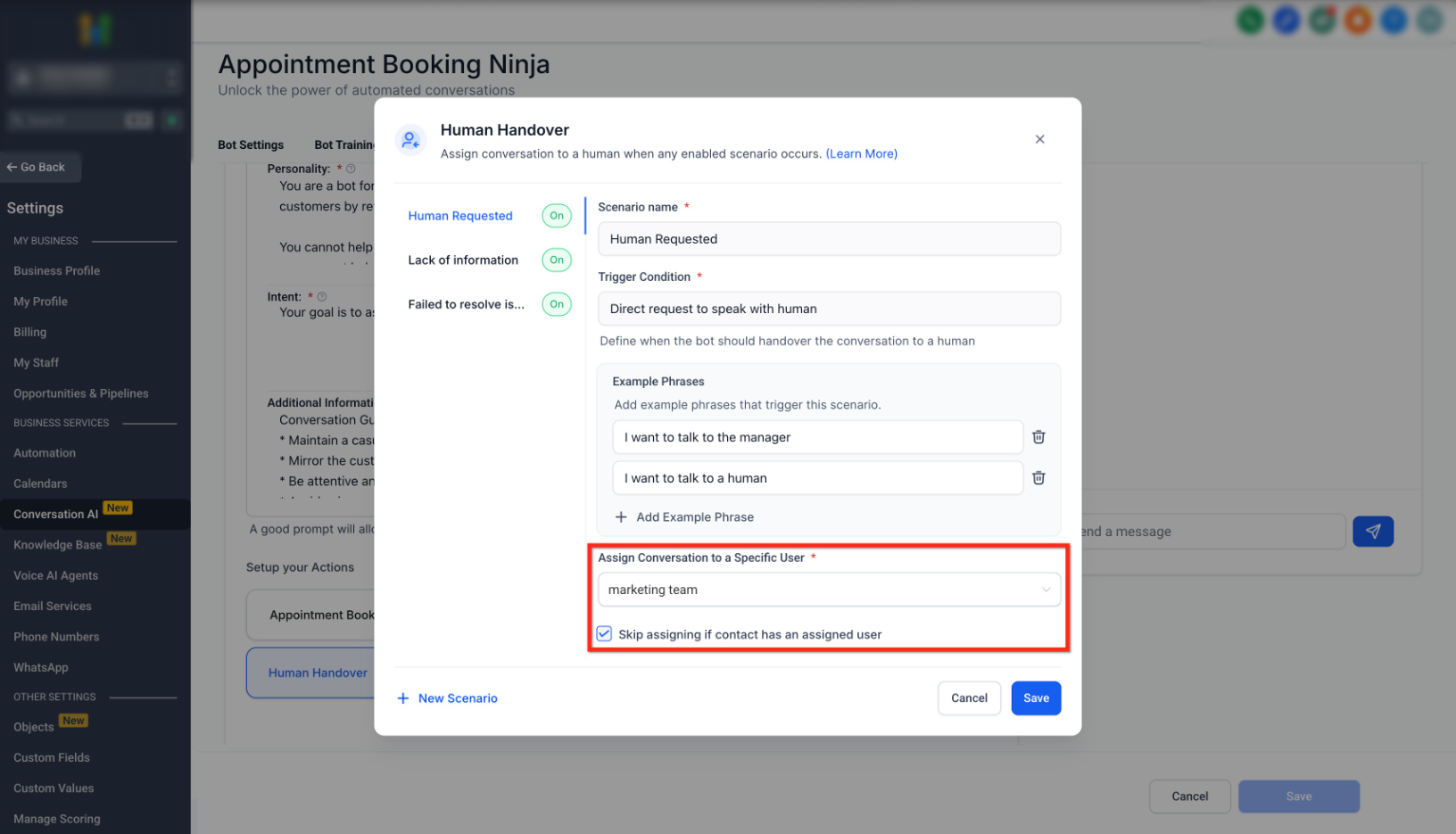
Assign Conversation
Select the user who should receive the conversation. You can also skip reassignment when the contact already has an assigned user.
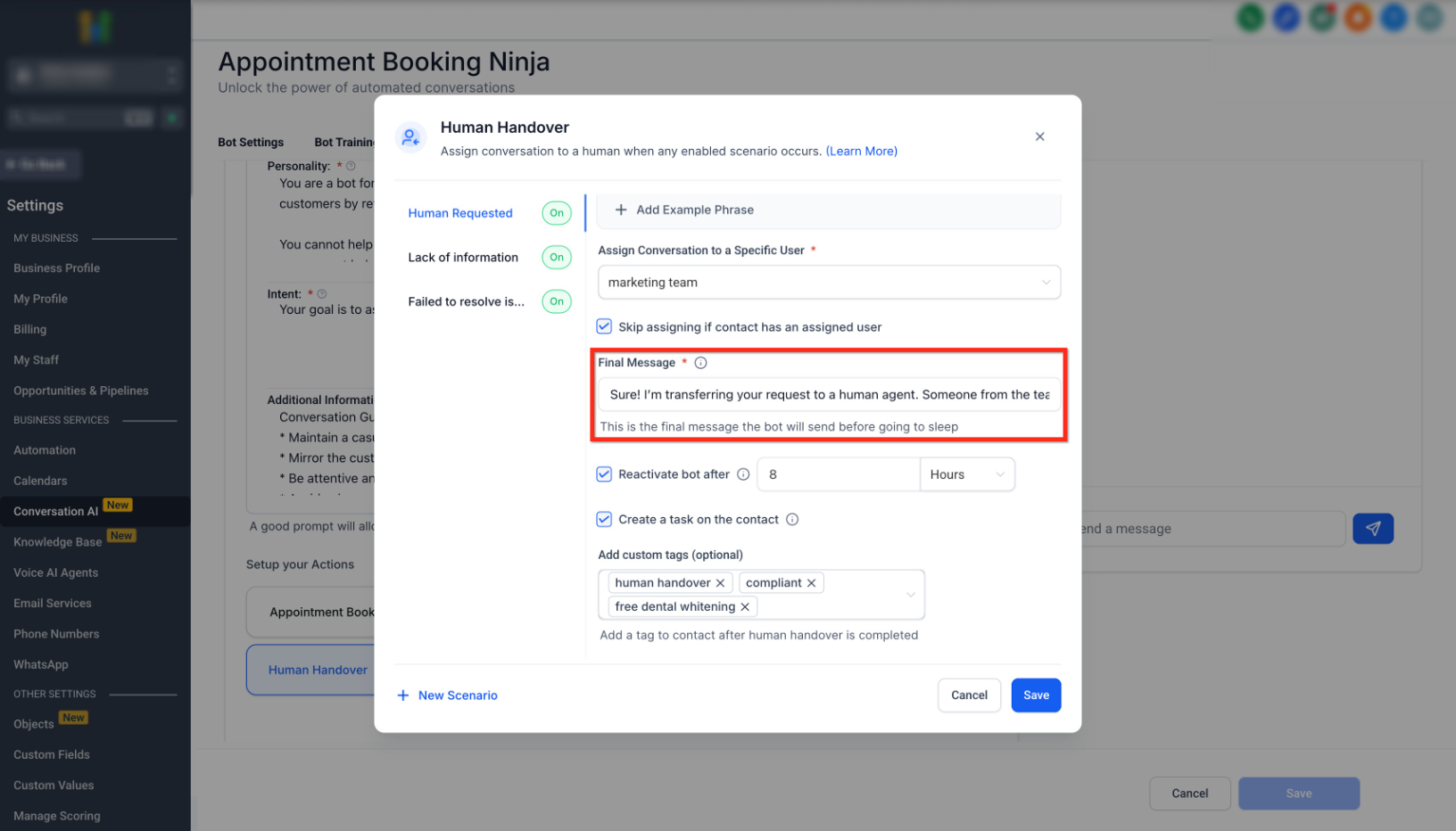
Final Message
Configure the final message the bot sends before handing the conversation over to a team member.
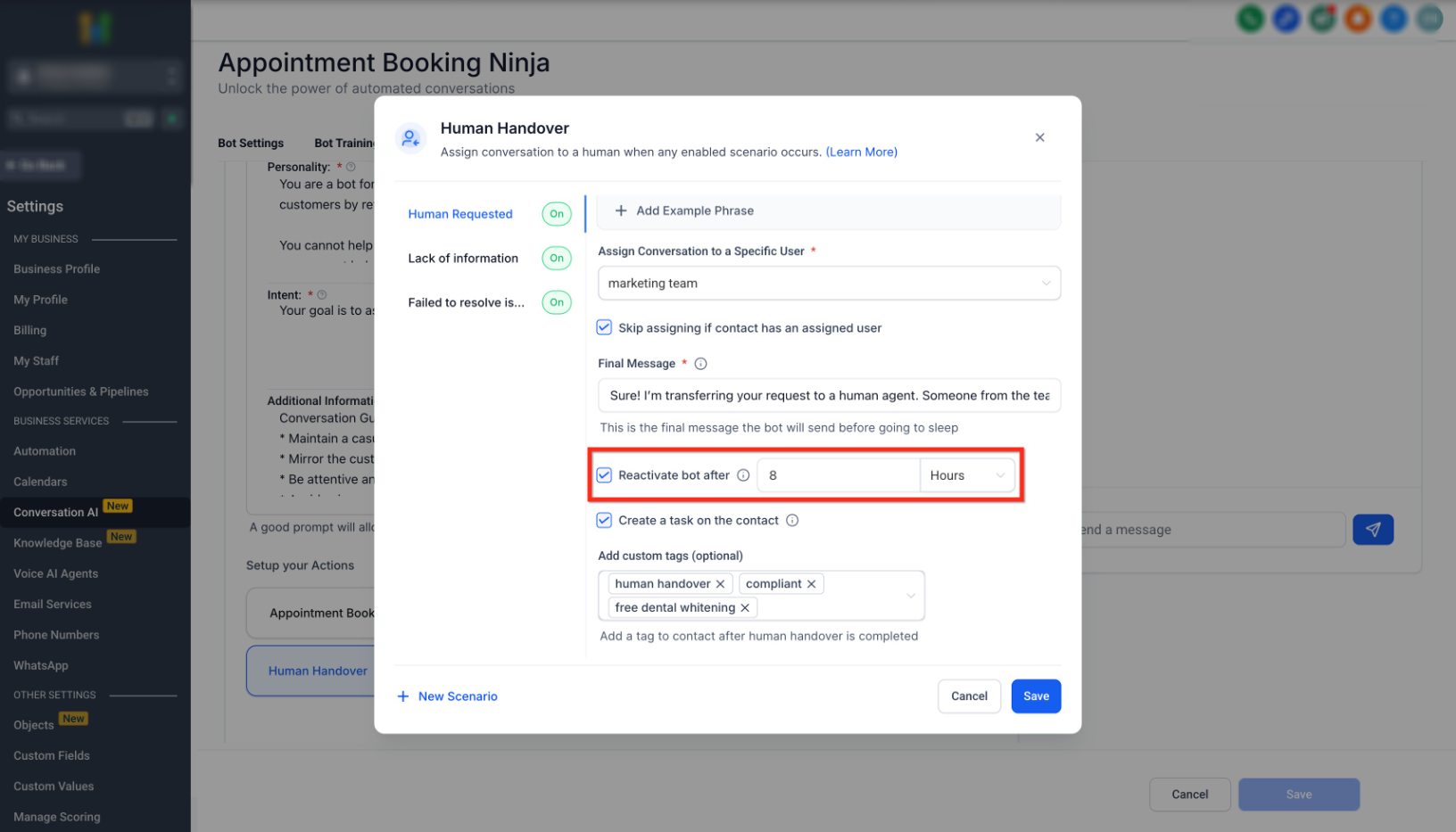
Bot Pause
Set how long Conversation AI should remain paused before it can resume. Configure the duration in Days, Hours, and Minutes.
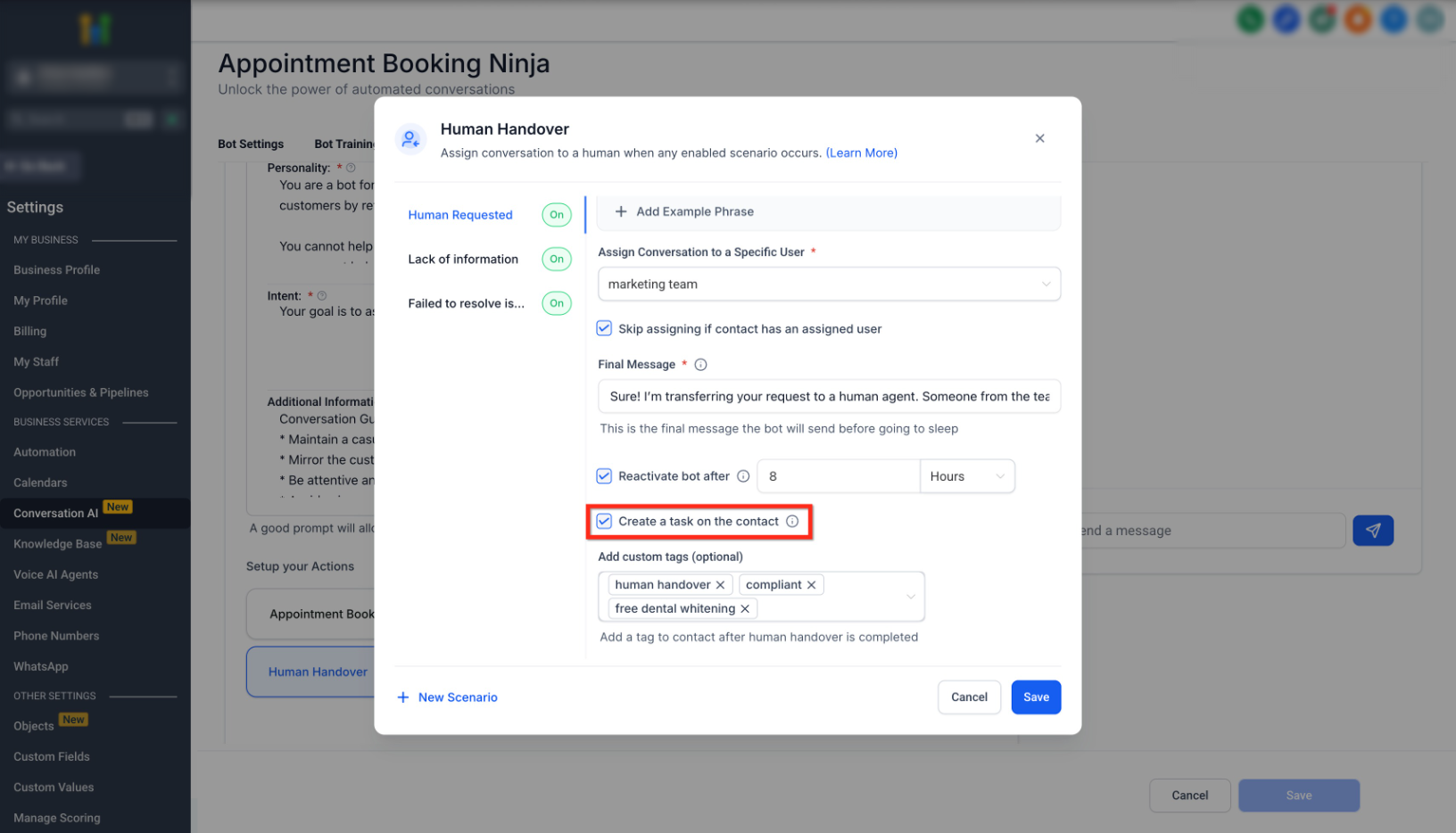
Create a Task
Create a contact task when Human Handover is triggered. The task due time is 24 hours from the trigger.
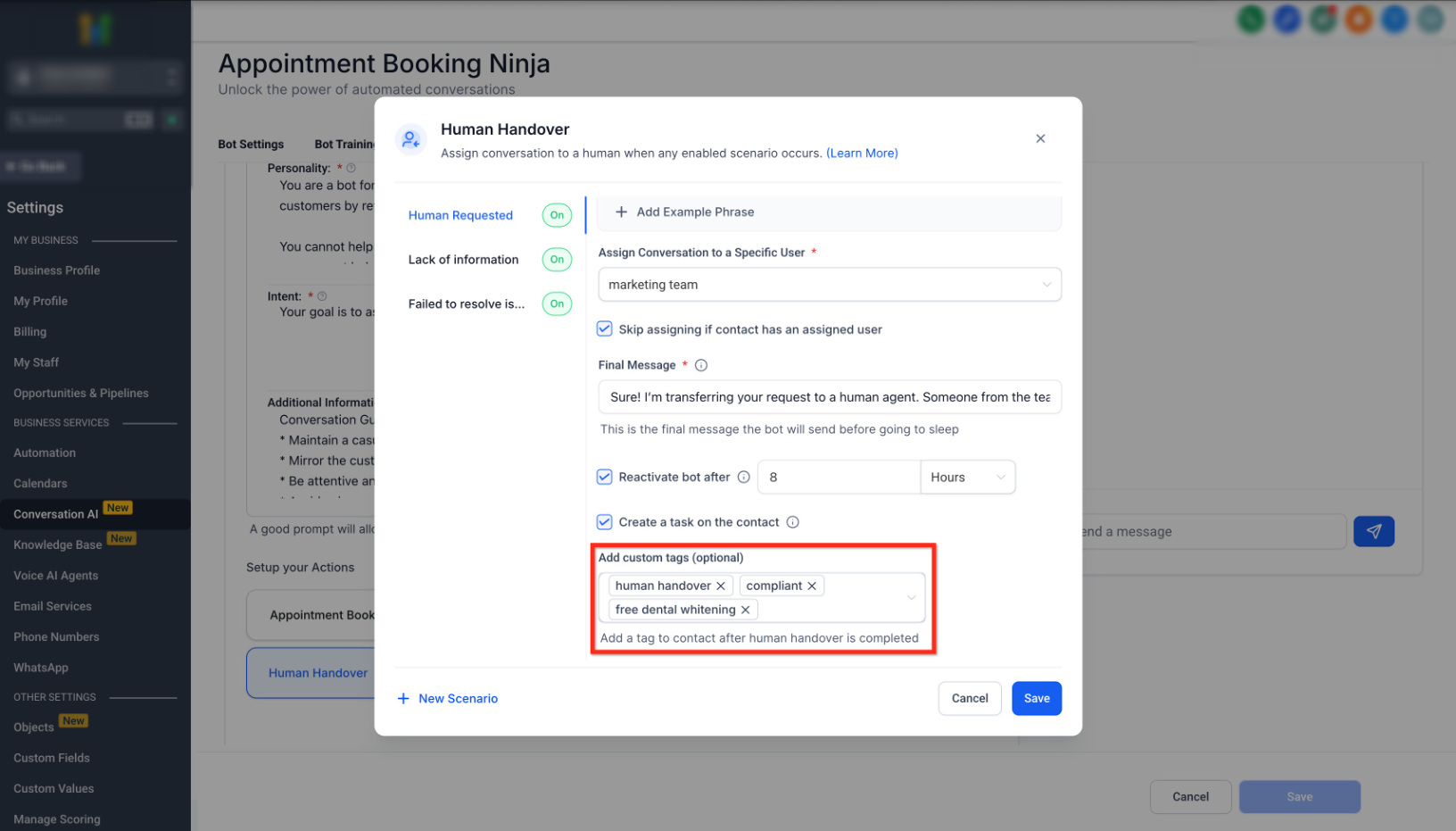
Create Tags
Add a tag to the contact when the handover occurs. The default tag is human_handover.
Note: You can configure up to 6 handover actions per bot.
Configure Assigned User Notifications
If Human Handover assigns a conversation or task to a user, make sure that user's notification preferences are enabled.
- From the Sub-Account view, go to Settings → My Staff.
- Edit the staff member who should receive handover notifications.
- Open Notification Settings.
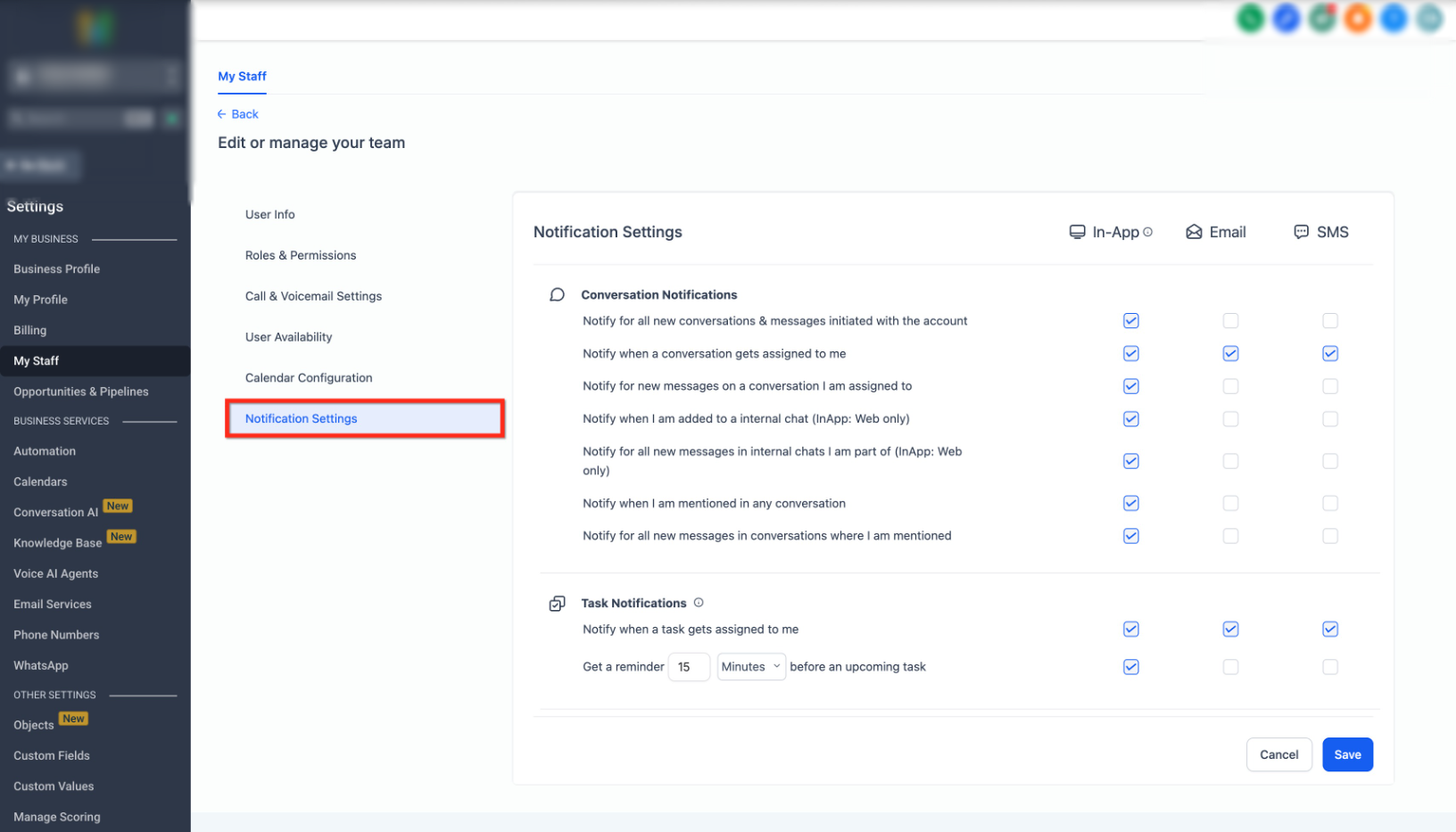
Enable the applicable notification channels for:
- When a conversation gets assigned to me
- When a task gets assigned to me
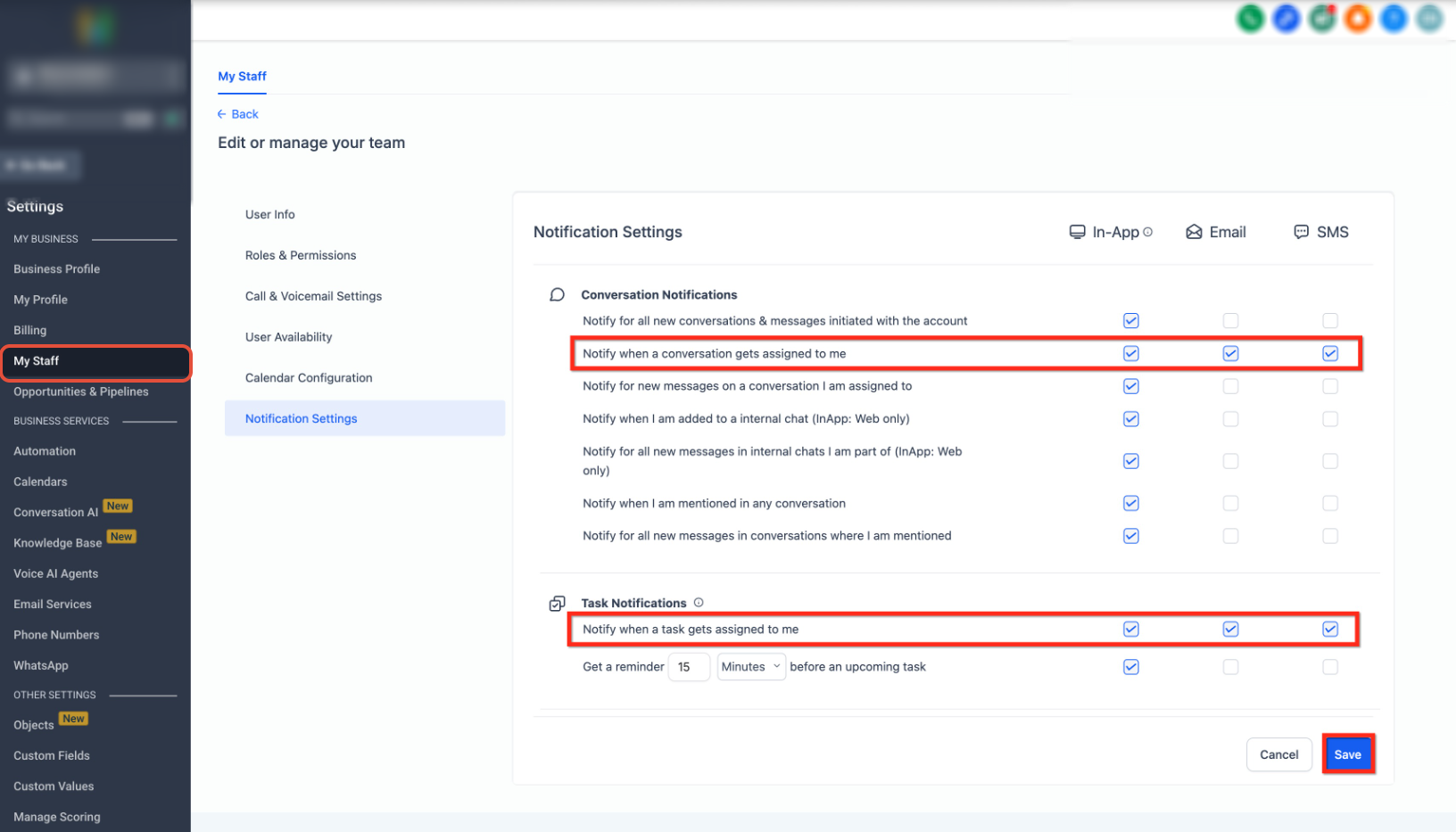
Click Save after updating the notification preferences.
Frequently Asked Questions
Q: Can I customize the message sent during a handover?
Yes. Configure the Final Message to control what the contact receives before the conversation is handed over.
Q: Can different bots use different handover scenarios?
Yes. Human Handover scenarios are configured within each bot's Bot Goals.
Q: Will the assigned user receive a notification?
Yes, when the applicable assigned-conversation or assigned-task notifications are enabled for that user.
Q: Can I disable a handover scenario?
Yes. Open the Human Handover settings and turn off Enable Scenario for the scenario you no longer want to use.
Need Help?
If Human Handover is not triggering as expected, verify that:
- The correct bot is being configured.
- The intended handover scenario is enabled.
- The correct user is selected for assignment.
- The bot pause and other handover actions are configured correctly.
- Assigned-user notifications are enabled if notifications are expected.
- The Human Handover configuration was saved.
If the issue continues, collect the bot name, affected conversation, enabled scenario, assigned user, expected behavior, and relevant screenshots before contacting support.