
Learn what the Plain Text Editor is, when to use it, how to create a plain-text email template, and how it differs from other email editing options.
What Is the Plain Text Editor?
The Plain Text Editor is an email editing option for creating simple, text-focused messages. It is useful when you want the email to feel more like a direct message and do not need the visual layouts available in the Design Editor.
When to Use the Plain Text Editor
The Plain Text Editor is useful when the message should focus primarily on written content rather than a designed layout.
Common examples include:
- Direct or conversational messages
- Welcome or follow-up emails
- Text-heavy communications
- Emails that do not require complex layouts or visual design
How to Create a Plain Text Email Template
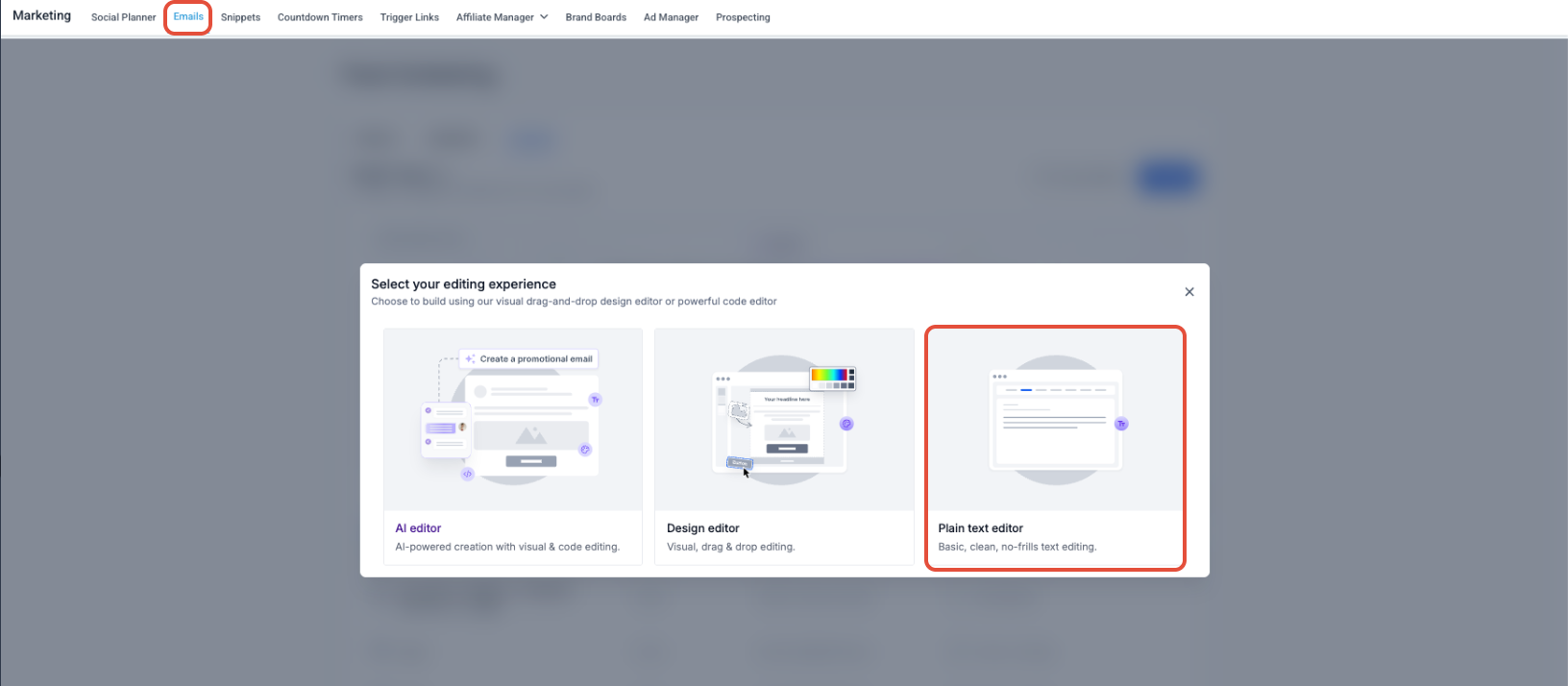
Create a new template and select the Plain Text Editor when you want a text-focused email instead of a drag-and-drop design or custom HTML.
- Go to Marketing → Emails → Templates.
- Click + New.
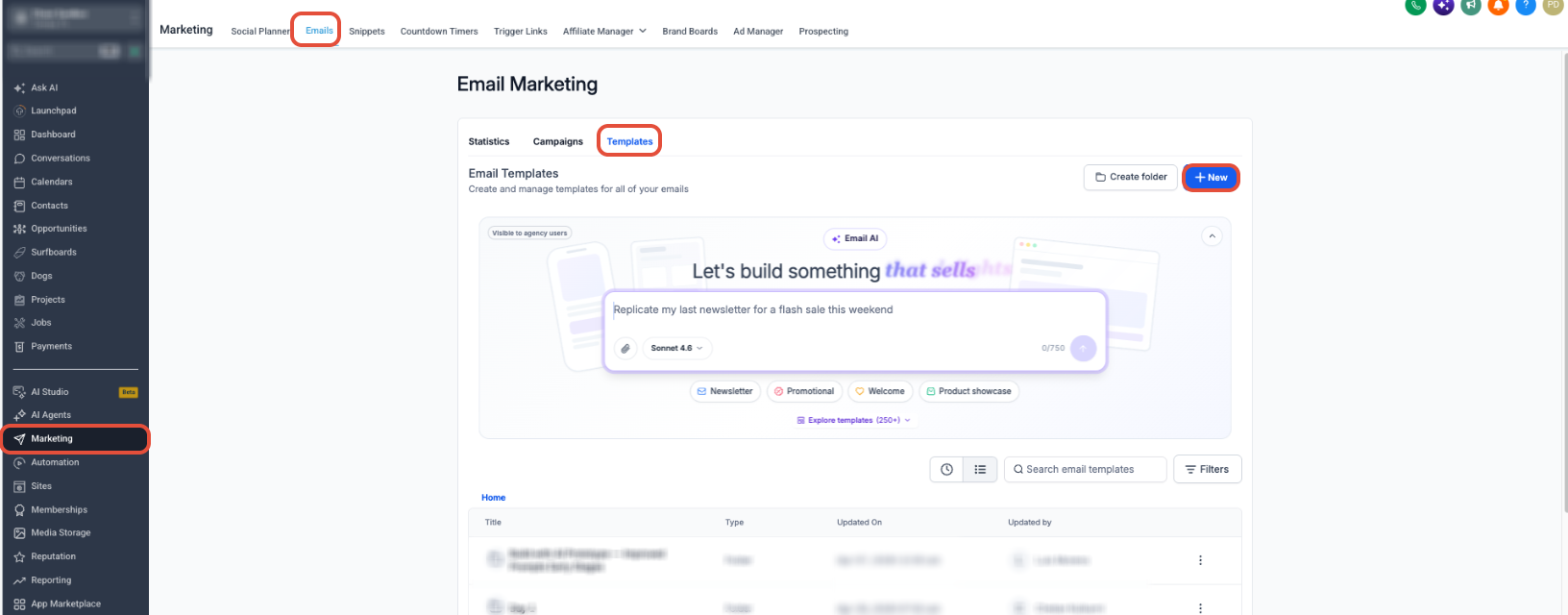
- Choose to create a new email template from scratch.
- When the editor options appear, select Plain Text.
- Enter your email content.
- Review the email before using it in a campaign or automation.
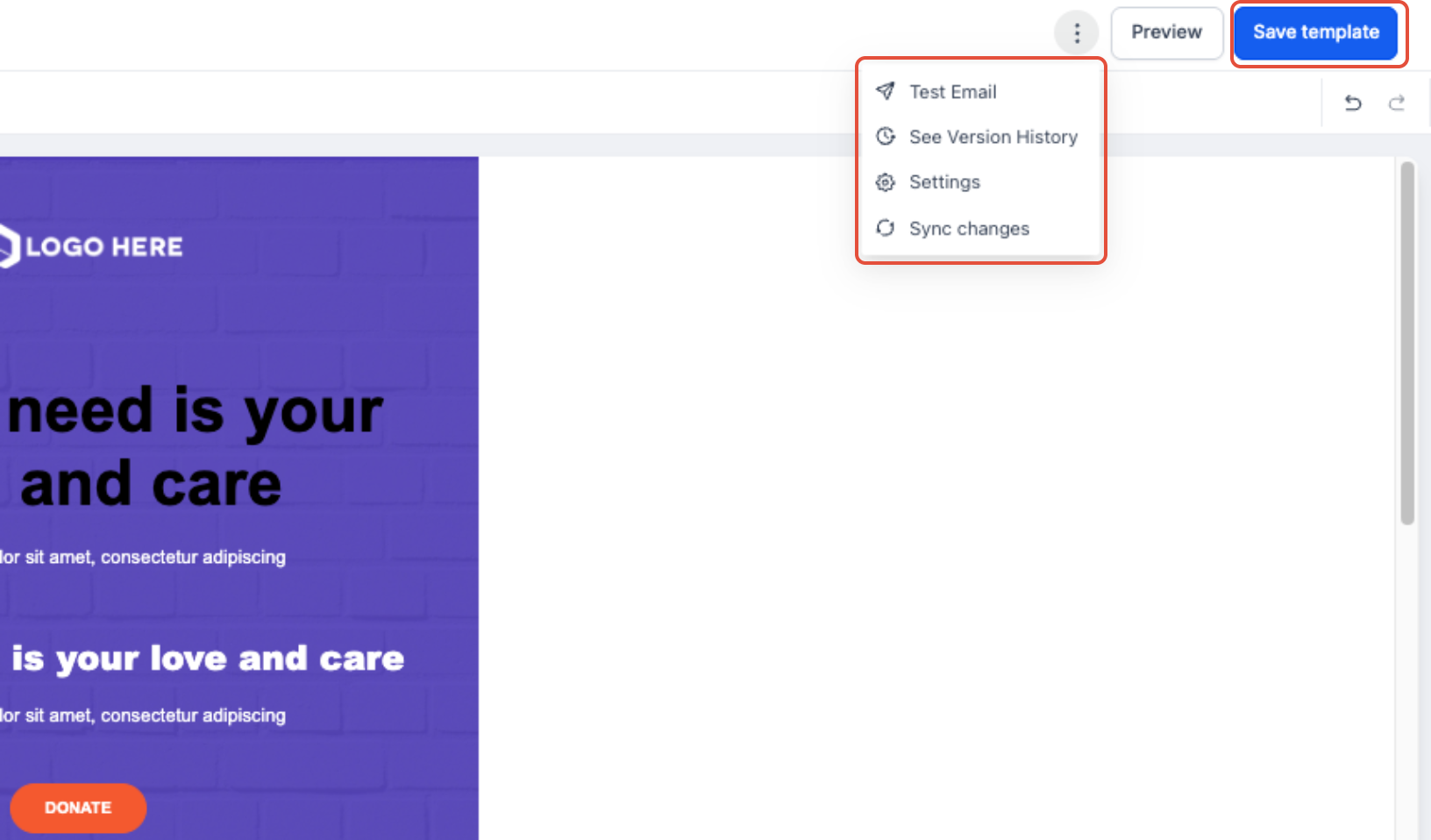
- Click Save Template.
Plain Text vs. Other Email Editors
Different editing options are available depending on how you want to build the email.
Plain Text
Use for simple, text-focused messages that do not require a designed layout.
Design Editor
Use for visual emails built with drag-and-drop elements and designed layouts.
Code Editor
Use when the email requires direct HTML control.
Note: Plain Text is not the same as Quick Compose. Quick Compose is a separate lightweight email creation option, while Plain Text is an editor option available through Smart Builder.
Preview and Test the Email
Review the email before using the template in a live campaign. Preview and Test Email tools can be used to check content, personalization, and inbox rendering before sending.
Frequently Asked Questions
Need Help?
- Cannot find Plain Text: Start a new email through Smart Builder and review the available editor options.
- Need a visual layout: Use the Design Editor instead of Plain Text.
- Need direct HTML control: Use the Code Editor.
- Need to test the email: Use the available Preview and Test Email controls before using the template in a live campaign.
- Still need assistance? Contact your administrator or support team with the template and email-editor details.