
Set up a Live Chat Widget to give website or funnel visitors a direct way to start a conversation. This guide explains how to create and customize a Live Chat Widget, copy its embed code, and deploy it either through the page editor or the website or funnel settings.
TABLE OF CONTENTS
- Create a Live Chat Widget
- Deploy the Live Chat Widget via Embed Code
- Deploy the Live Chat Widget via Settings
- Frequently Asked Questions
- Need Help?
Create a Live Chat Widget
Create a Live Chat Widget and customize it before adding it to a website or funnel.
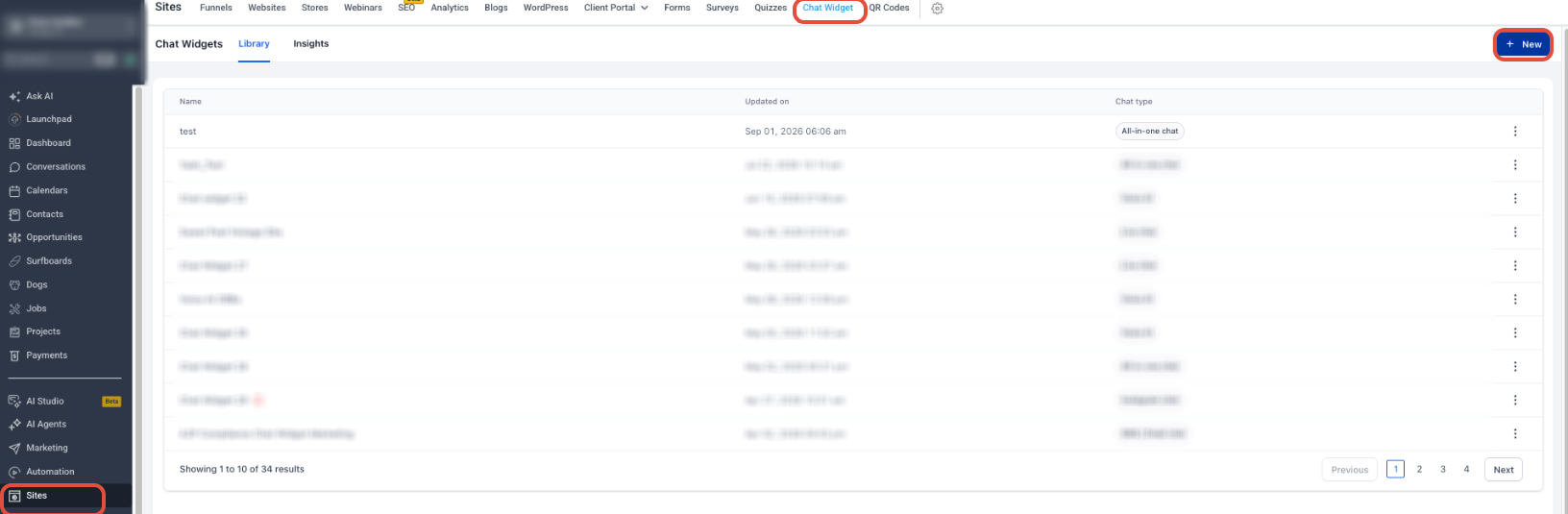
- From the Sub-Account view, go to Sites → Chat Widget.
- Click New. Available widget types can include All-in-One Chat, SMS / Email Chat, Live Chat, and WhatsApp.
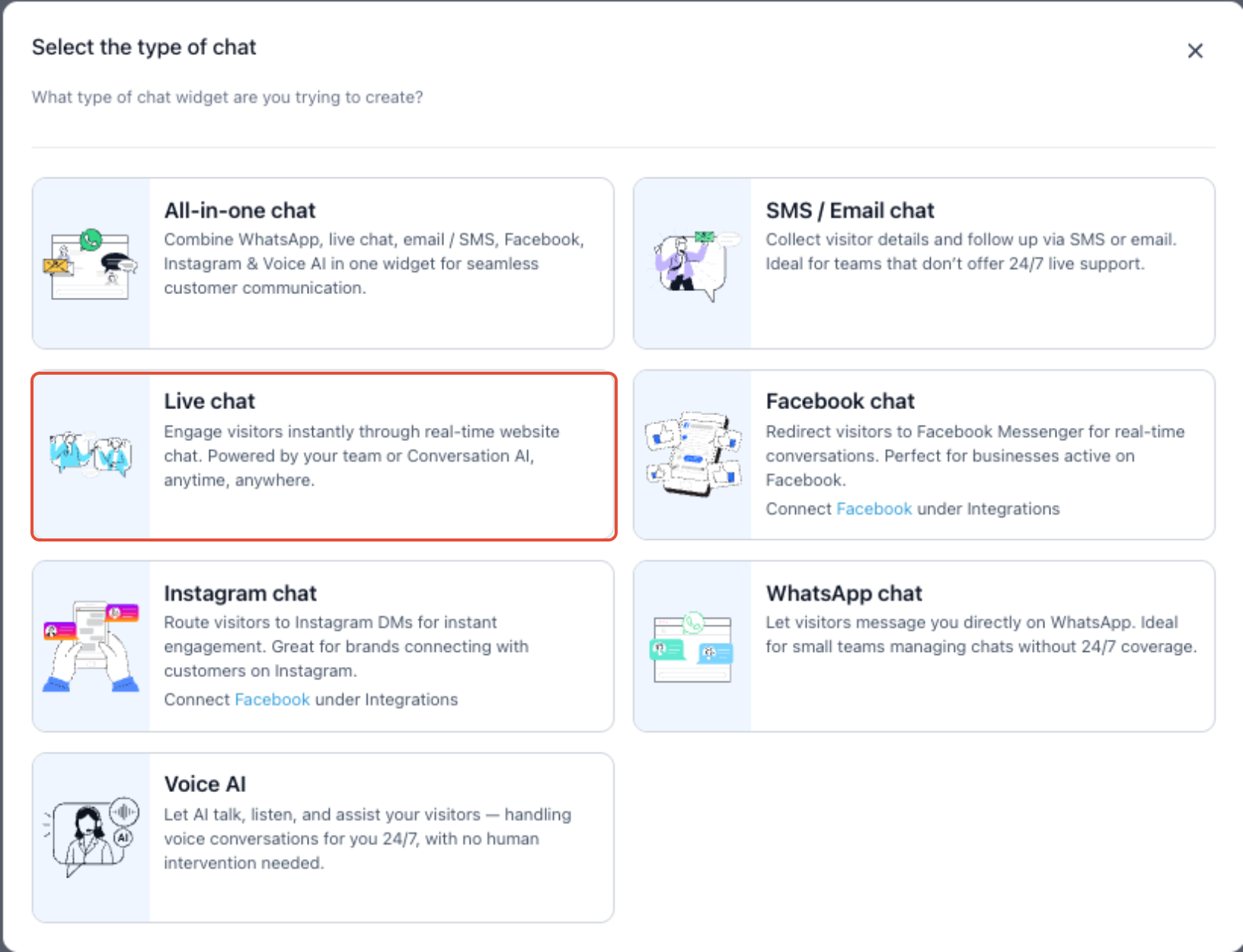
- Select Live Chat.
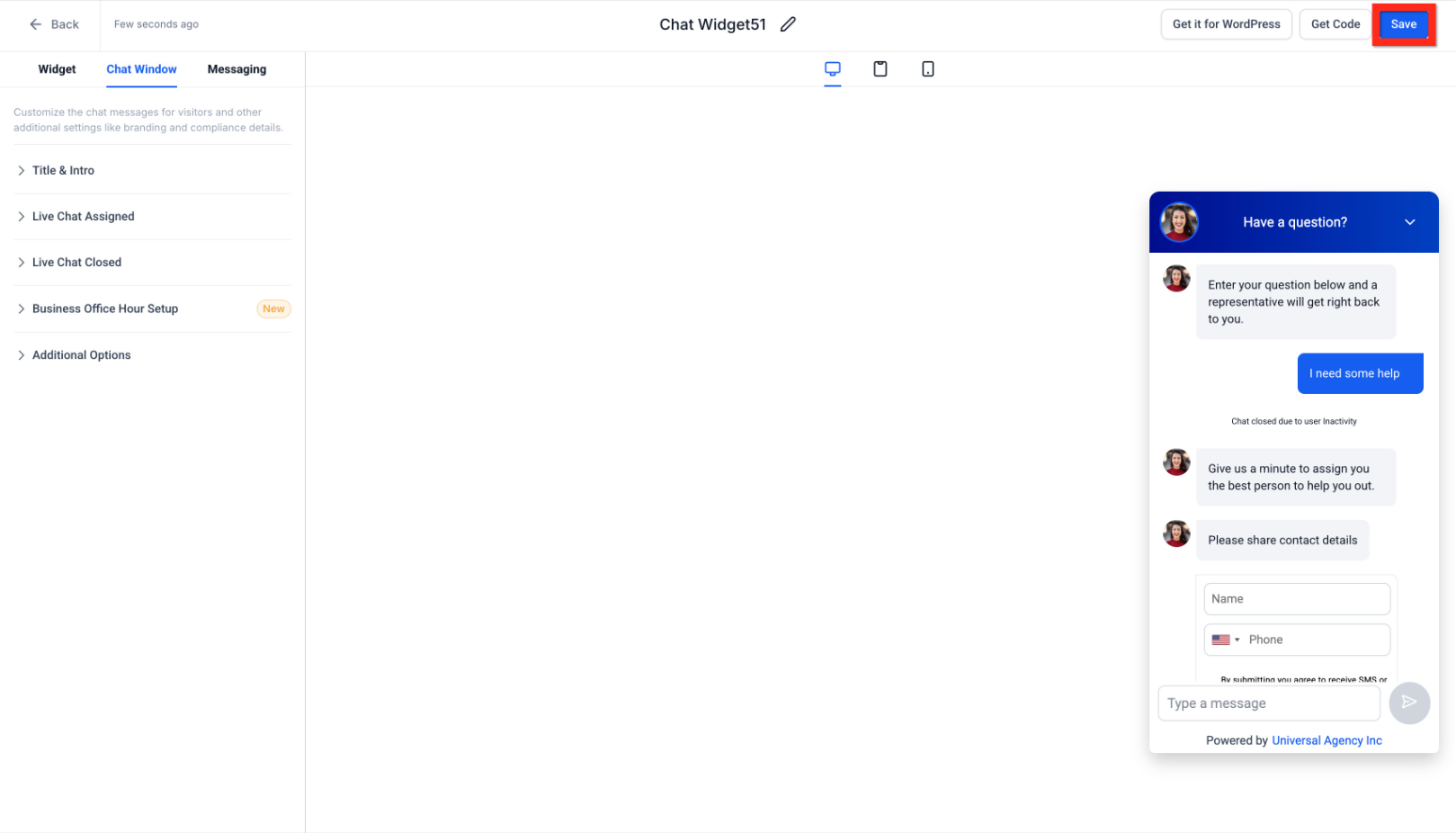
- Customize the widget to match your website or funnel.
- Click Save.
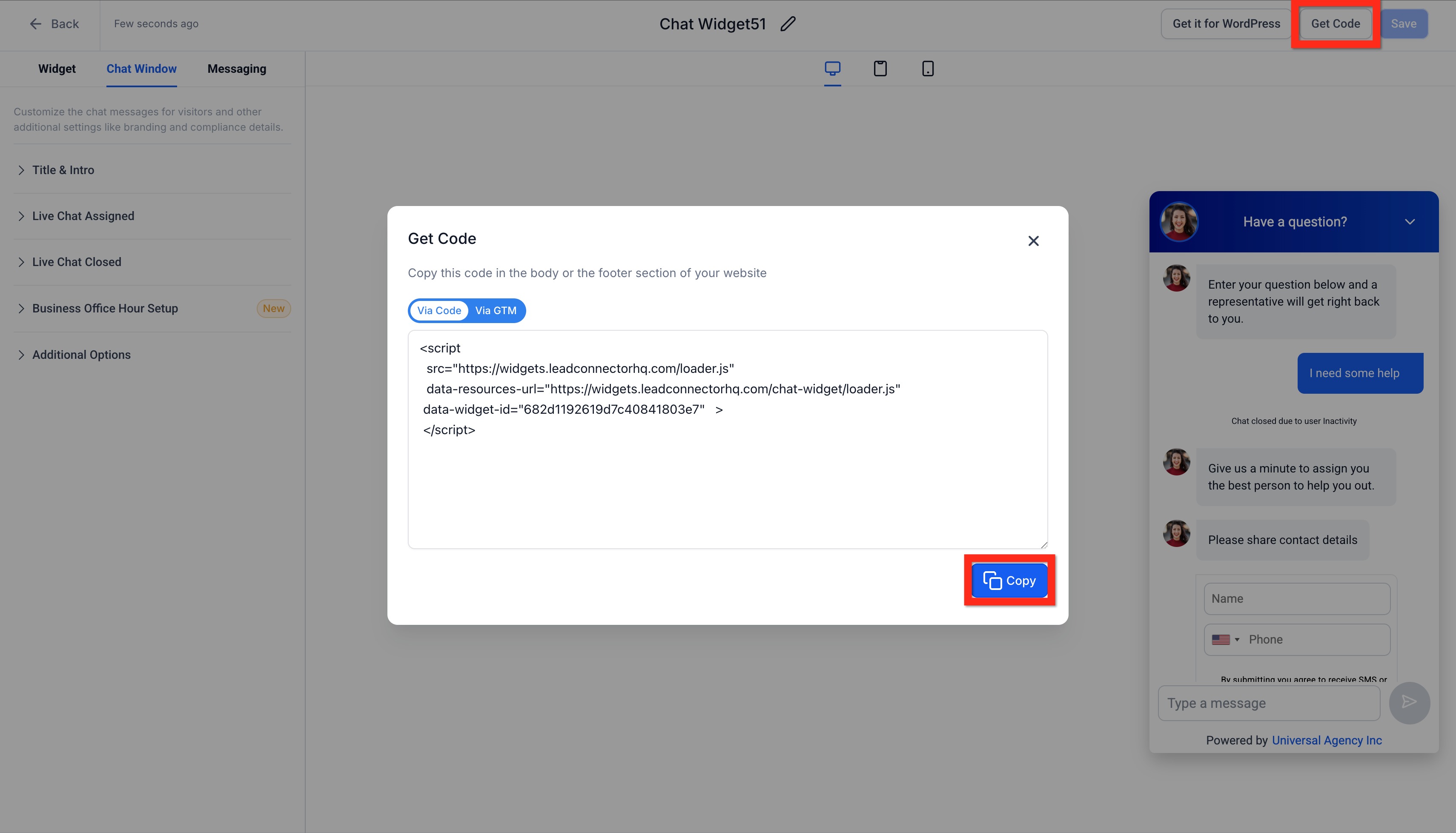
- Click Get Code, then copy the provided embed code.
Deploy the Live Chat Widget via Embed Code
Use the embed code when you want to add the Live Chat Widget directly through the website or funnel editor.
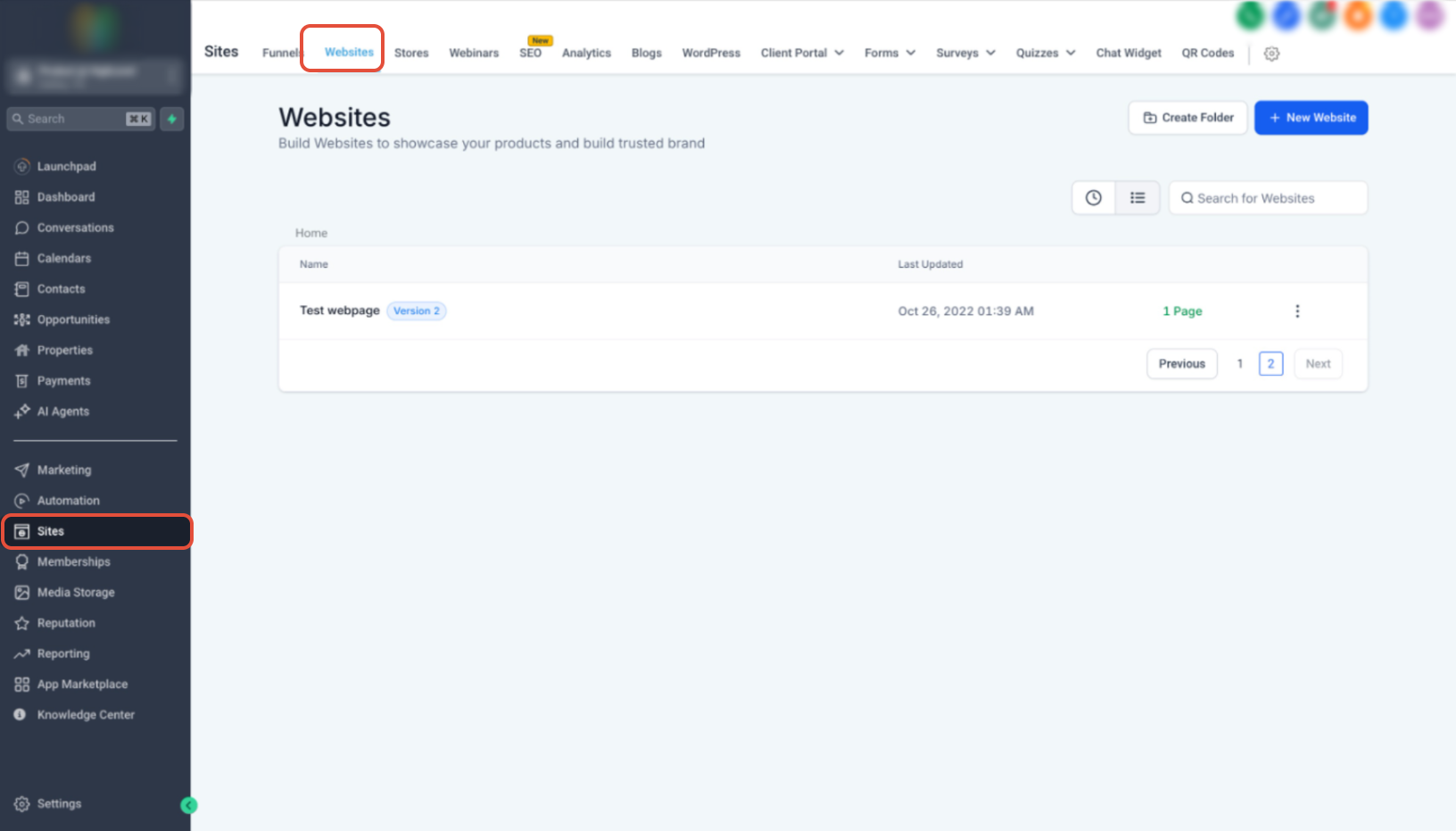
- From the Sub-Account view, go to Sites → Websites or Sites → Funnels.
- Open the website or funnel you want to edit.
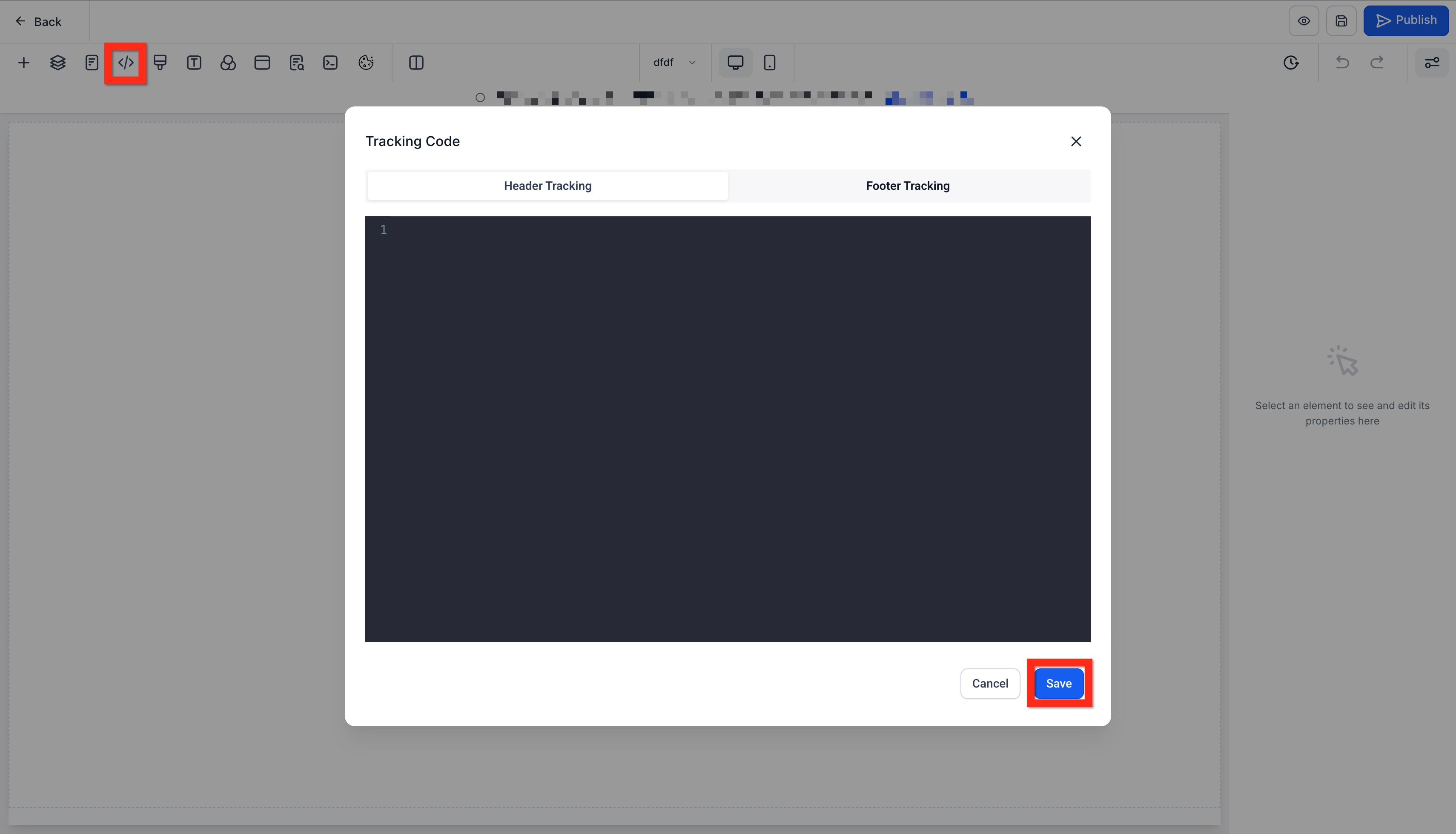
- In the editor, click the Tracking Code icon (
</>). - Paste the Live Chat Widget embed code.
- Click Save.
Deploy the Live Chat Widget via Settings
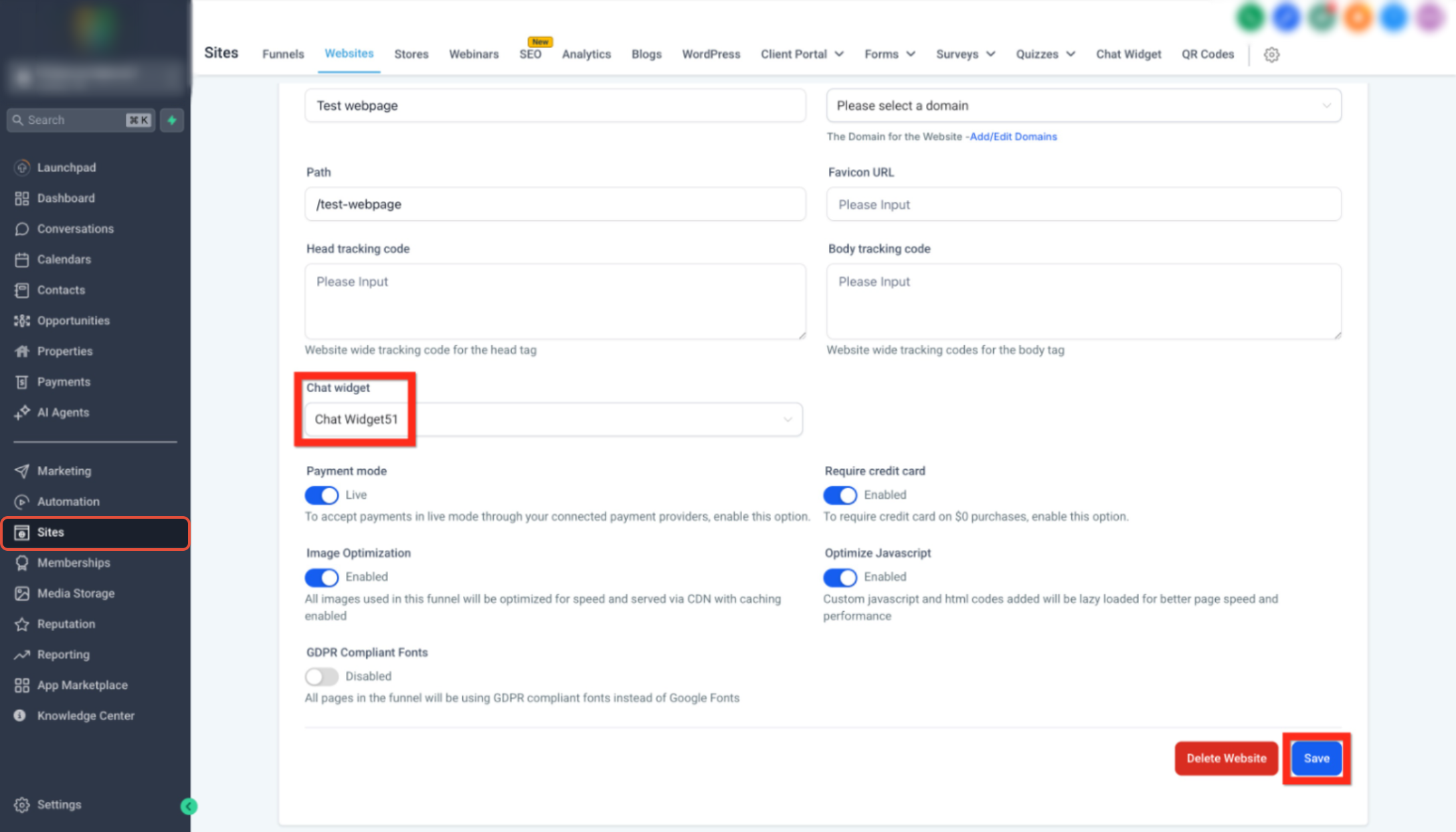
You can also assign the Live Chat Widget directly from the website or funnel settings without manually pasting the embed code.
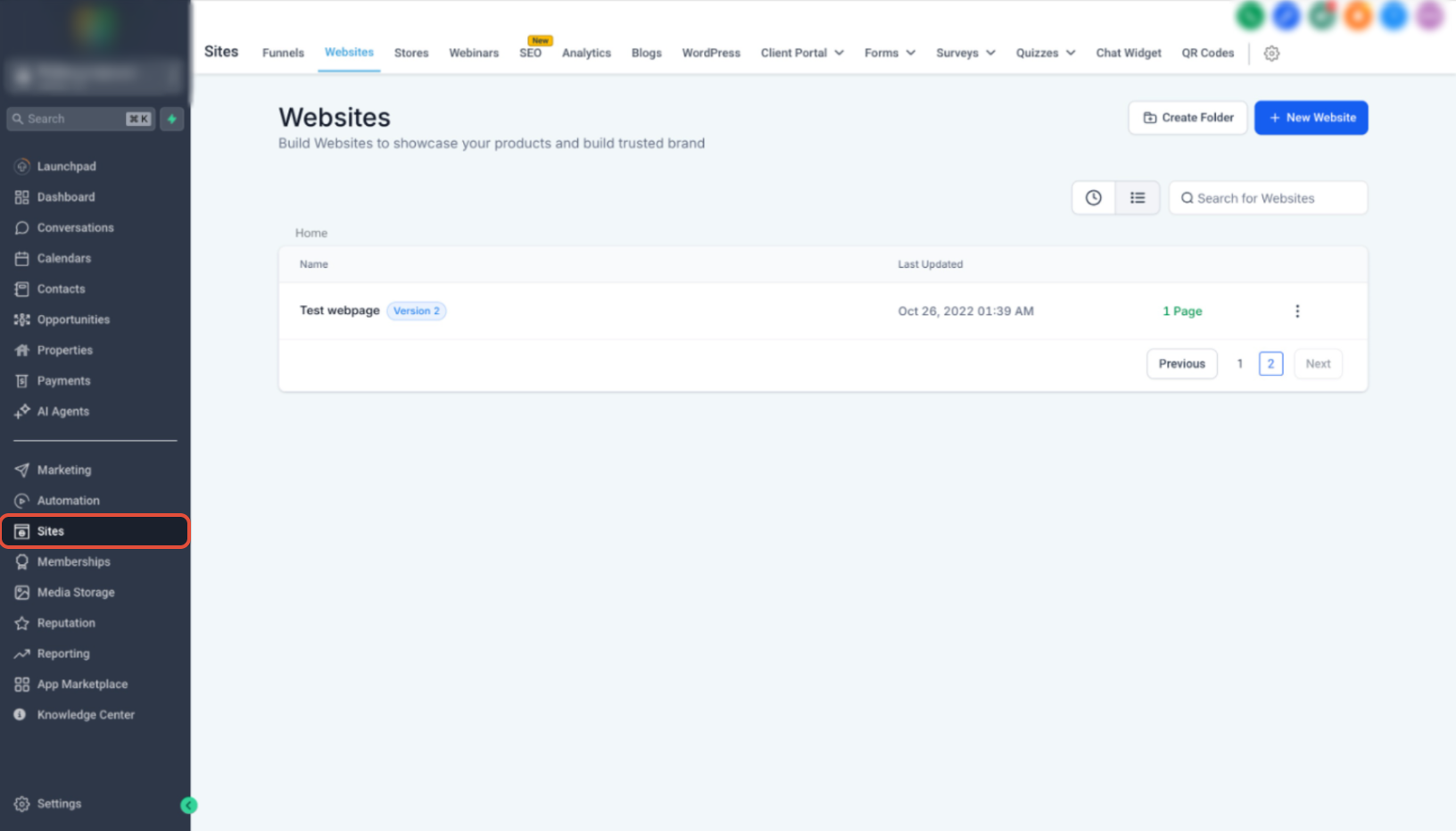
- From the Sub-Account view, go to Sites → Websites or Sites → Funnels.
- Open the settings for the website or funnel you want to update.
- Under Chat Widget, select the Live Chat Widget you want to use.
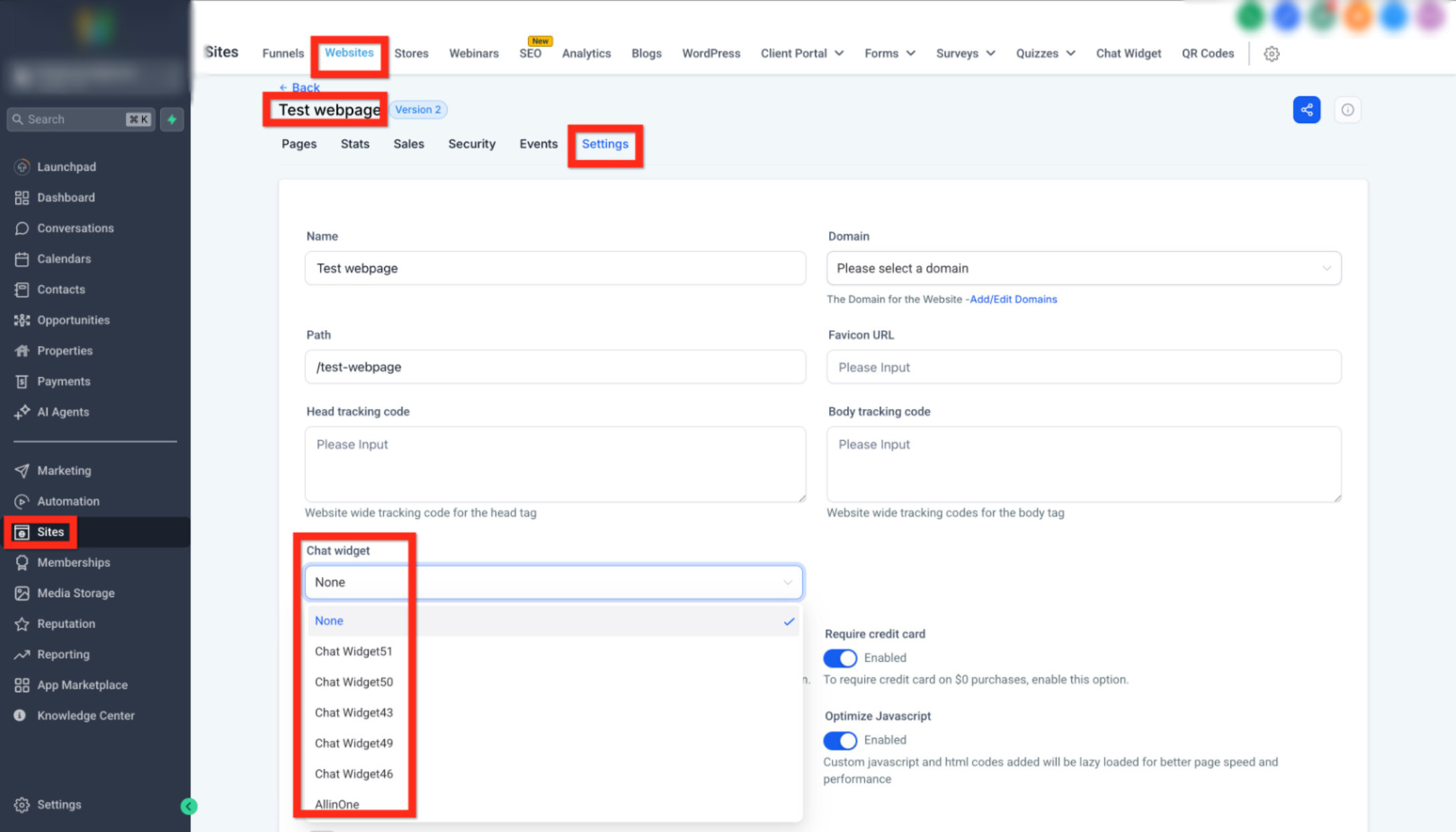
- Click Save.
Frequently Asked Questions
Q: Can I add a Live Chat Widget to both websites and funnels?
Yes. A Live Chat Widget can be added to supported websites and funnels either by using its embed code or by selecting the widget in the website or funnel settings.
Q: Do I have to use embed code to install the Live Chat Widget?
No. You can either paste the widget's embed code into the page editor or select the Live Chat Widget directly from the website or funnel settings.
Q: Where do I get the Live Chat Widget embed code?
Open the Live Chat Widget, save your configuration, then click Get Code and copy the provided embed code.
Q: Can I customize the Live Chat Widget before adding it to a page?
Yes. Customize the widget first, then save the changes before deploying it to your website or funnel.
Q: Why is my Live Chat Widget not appearing after I add it?
Confirm that the correct widget was selected or the latest embed code was added, the changes were saved and published, and another widget or browser setting is not interfering with the Live Chat Widget.
Need Help?
If the Live Chat Widget is not appearing or working as expected, verify the following:
- The Live Chat Widget was saved after it was configured.
- You are working with the correct website or funnel.
- The correct widget is selected in the website or funnel settings.
- If using embed code, the latest code was added to the correct Tracking Code area and saved.
- The website or funnel changes were published.
- The widget code was not added more than once.
- Another chat widget is not conflicting with the widget you are testing.
- Browser extensions, ad blockers, or privacy tools are not preventing the widget from loading.
- You tested the published page in a private or incognito browser window.
If the issue continues, collect the affected website or funnel URL, widget name, deployment method, browser and device, expected behavior, and relevant screenshots before contacting support.