
Create and manage contacts from the Sub-Account view, update existing contact details, and add custom fields when you need to store information beyond the standard contact fields. This guide covers creating a contact, editing an existing record, and creating custom fields so contact data stays organized and complete.
TABLE OF CONTENTS
Create New Contact
Add a contact when you need to create a new record directly from the Contacts area.
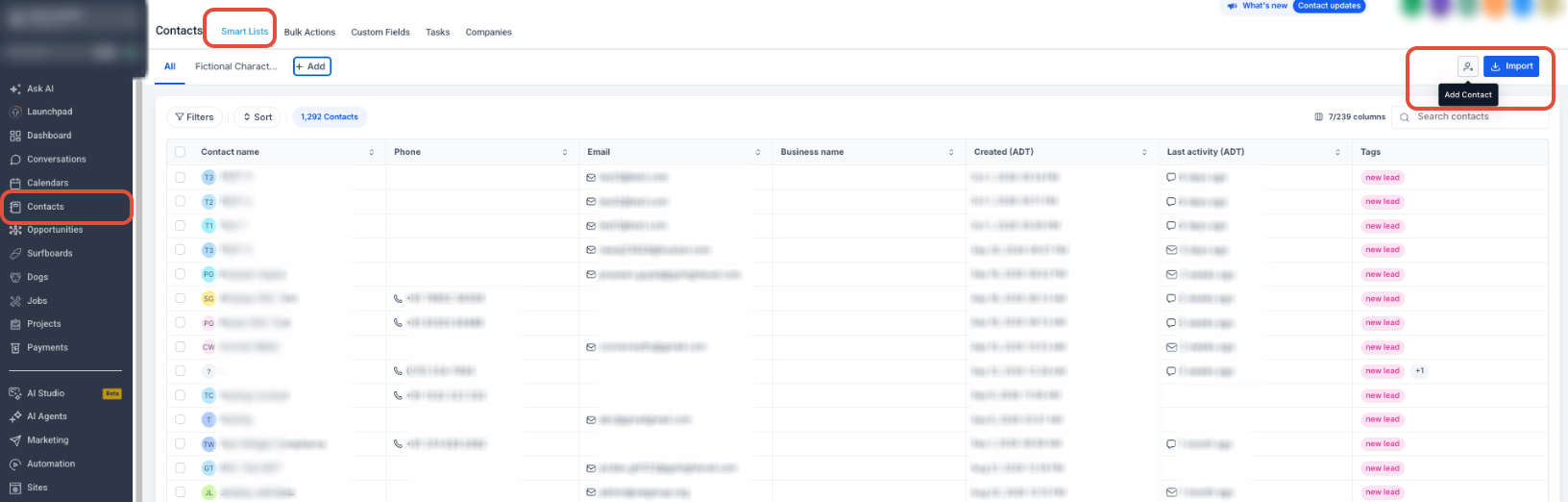
- From the Sub-Account view, go to Contacts.
- Click Add Contact.
- Enter the available contact details, such as name, email address, and phone number.
- Click Save.
Edit Existing Contact
Update an existing contact when information changes or additional details need to be added to the record.
- From the Sub-Account view, go to Contacts.
- Select the contact you want to update.
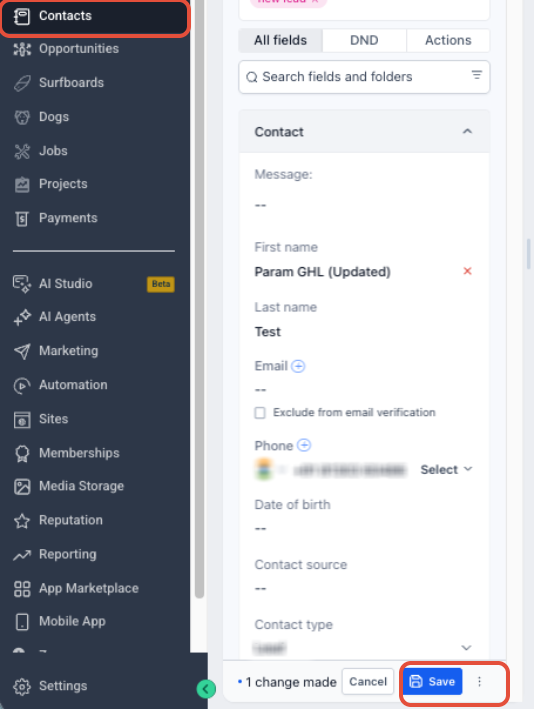
- Update the required contact information.
- Click Save.
If the field you need is not available on the contact record, create a custom field.
Create New Custom Fields
Custom fields let you store information that is not available in the standard contact fields.
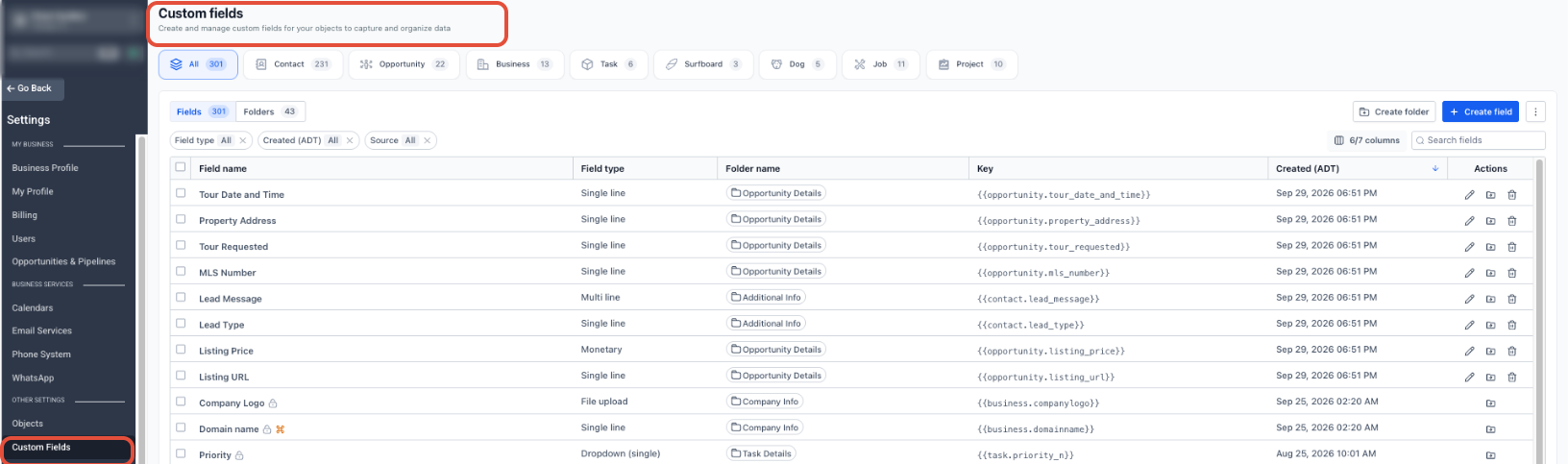
- From the Sub-Account view, go to Settings → Custom Fields.
- Click Create Field.
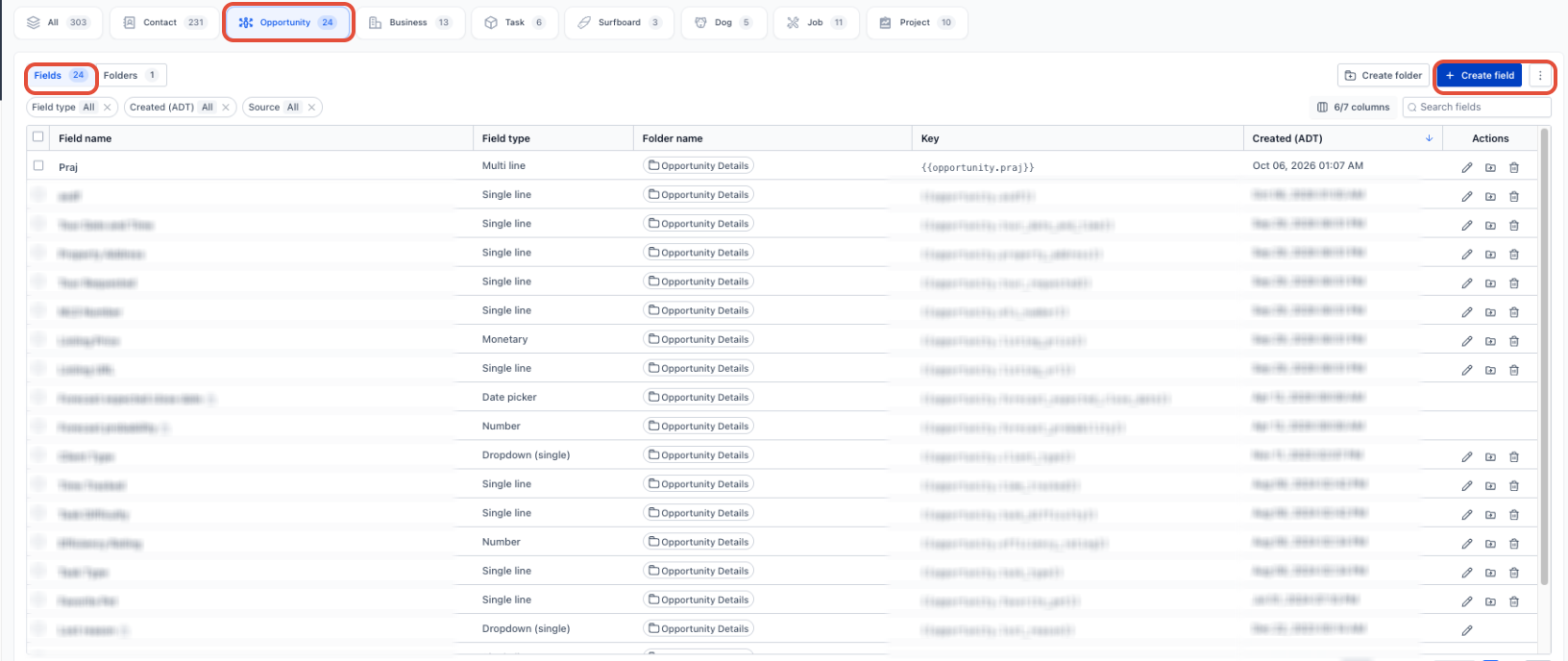
- Select the type of field you want to create, such as text, dropdown, or date.
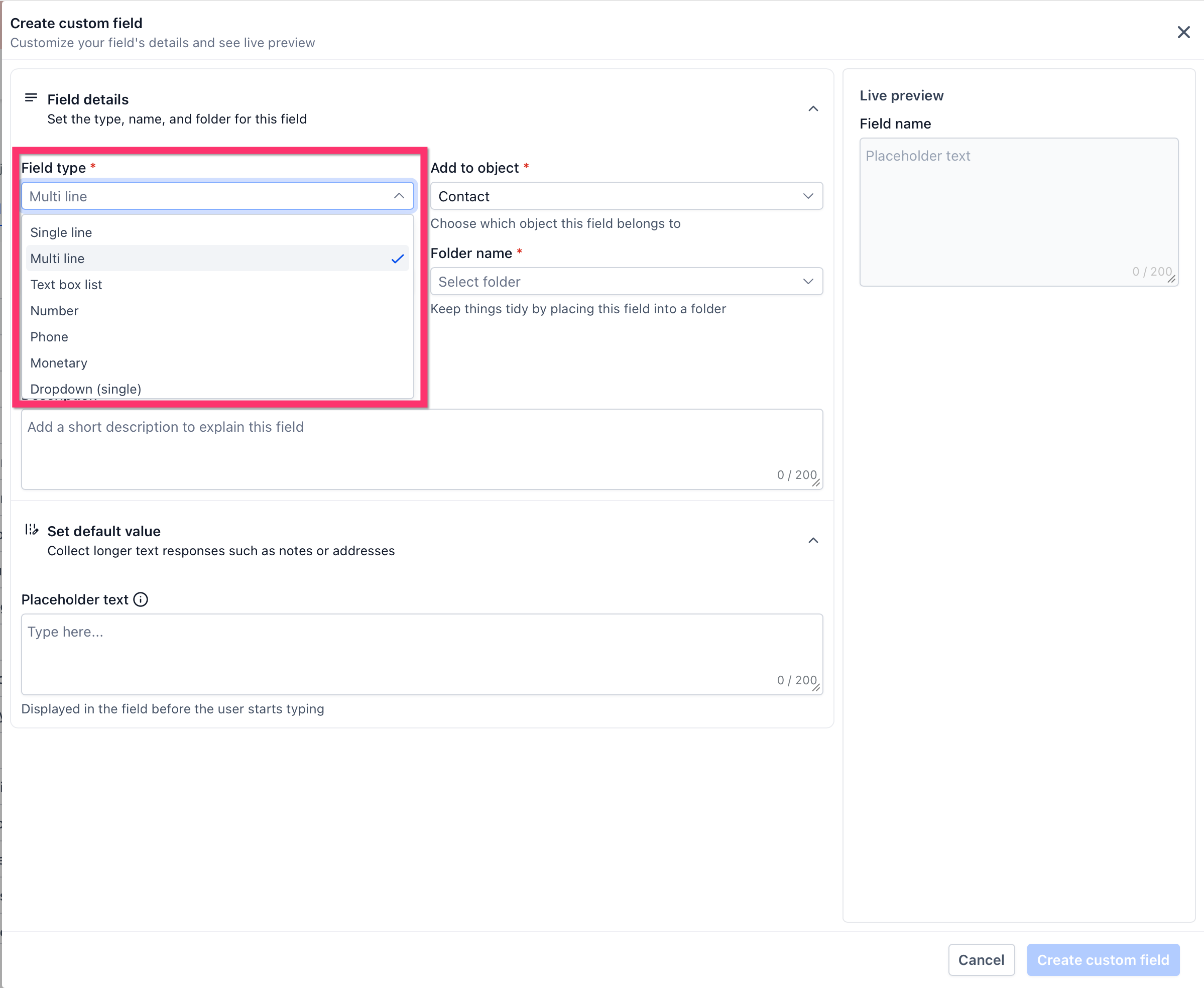
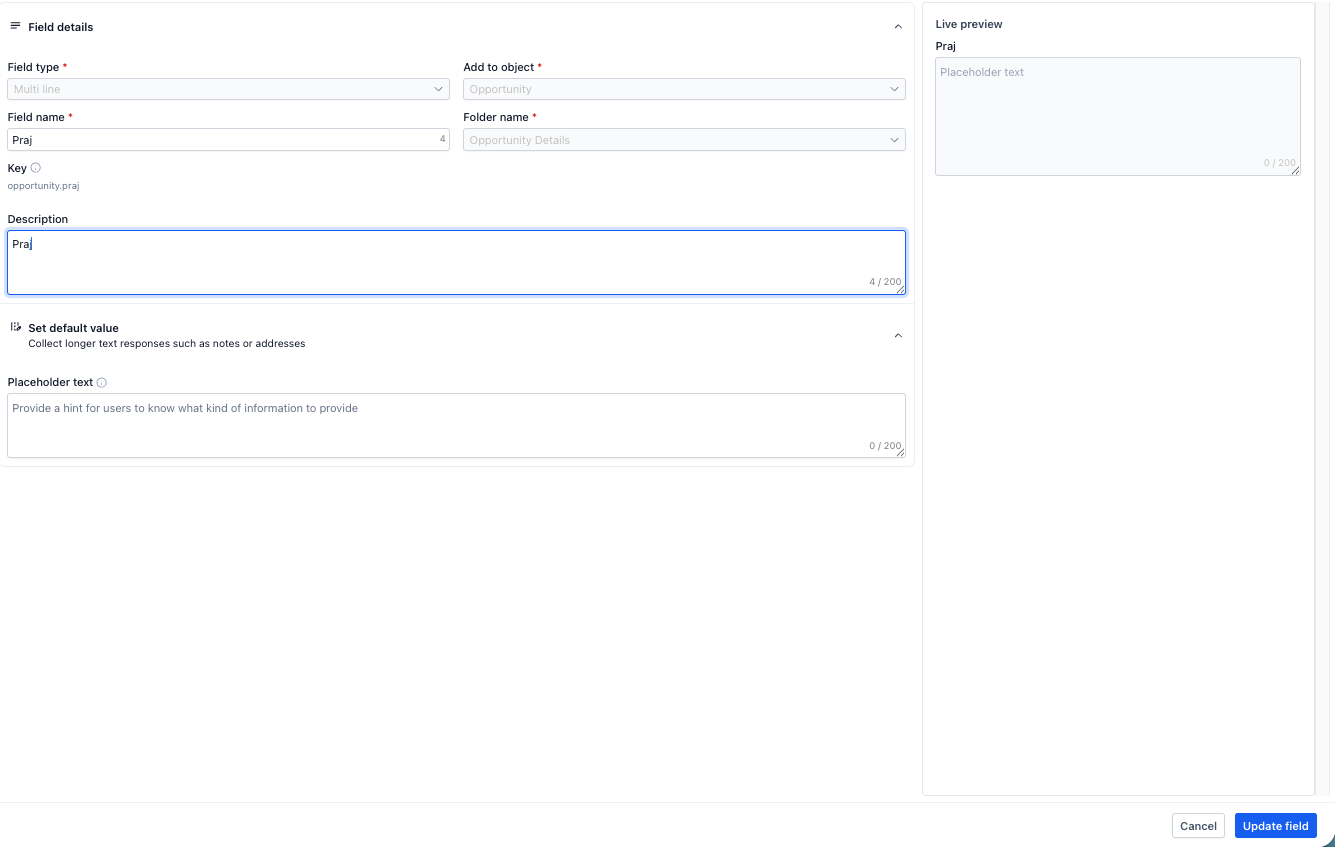
- Configure the field name and other available settings, then click Update Fields.
Frequently Asked Questions
Q: Can I edit a contact after it has been created?
Yes. Go to Contacts, open the contact record, update the required information, and click Save.
Q: What should I do if the field I need is not available on the contact record?
Create a custom field under Settings → Custom Fields, then configure the field for the information you need to store.
Q: What types of custom fields can I create?
Available field types can include options such as text, dropdown, and date fields. Select the type that best matches the information you want to collect.
Q: Where do I manage contact custom fields?
From the Sub-Account view, go to Settings → Custom Fields.
Need Help?
If you cannot create or update a contact or custom field, verify the following:
- You are working in the correct Sub-Account.
- The contact information was saved successfully.
- The email address and phone number use the correct format.
- You opened the correct contact before making changes.
- The required standard or custom field exists.
- The custom field uses the correct field type and configuration.
- Duplicate contact records are not causing confusion.
- Your permissions allow you to manage contacts and custom fields.
If the issue continues, collect the affected contact name, field name, expected behavior, any error message, and relevant screenshots before contacting support.